
Quick Answer
A digital notetaker is software or hardware that lets you capture, organize, and sync notes across devices electronically, replacing traditional paper notebooks.
The best digital notetakers in 2026 include apps like Notion (best for organization), Obsidian (best for knowledge management), and OneNote (best for handwriting), plus devices like reMarkable 2 (best e-ink experience) and iPad with Apple Pencil (most versatile).
Digital notetakers offer searchability, cloud sync, multimedia support, and collaboration features that paper can't match, making them essential for students, professionals, and teams who need organized, accessible notes anywhere.
Key Takeaways
- Digital notetakers fall into 4 categories: Note-taking apps, dedicated e-ink devices, tablets with stylus, and hybrid smart pens
- Apps are most cost-effective: Free to $15/month vs $300-600 for devices, making them ideal for most users
- E-ink devices best for handwriting purists: reMarkable 2 and Supernote offer paper-like writing without distractions
- iPads most versatile: Combine notetaking with productivity apps, but cost $400-1,200+ with Apple Pencil
- Cloud sync is essential: Top tools sync instantly across phone, tablet, and computer for seamless access
- Students benefit most from free tiers: Notion, Evernote, and OneNote offer generous free plans perfect for academic use
- Handwriting recognition matured: 2026 OCR technology converts handwritten notes to searchable text with 95%+ accuracy
- Collaboration features critical for teams: Real-time editing, sharing, and commenting separate basic from professional tools
Table of Contents
- What is a Digital Notetaker?
- Types of Digital Notetakers
- Best Digital Notetakers Comparison
- Digital Notetaking Apps
- Digital Notetaking Devices
- How to Choose the Right Notetaker
- Best for Different Use Cases
- Key Features Explained
- Setup & Getting Started
- Pricing Guide
- Frequently Asked Questions
- Related Resources
Complete Guide to Digital Notetakers (2026)
Remember when losing your notebook meant losing months of work? When searching for specific notes required flipping through hundreds of pages? When sharing notes meant photocopying or rewriting by hand?
Those days are over.
📊 Fact Box: The Digital Notetaking Revolution
- The note-taking app market grew from $11.02 billion in 2025 to $13.3 billion in 2026, a 20.6% CAGR
- 60%+ of college students use both handwritten and digital notes during the same semester
- Students who review organized digital notes score higher on assessments than those without structured review
- Knowledge workers spend 2.5 hours per day searching for information across fragmented notes and documents
- Handwriting recognition (OCR) now achieves 95%+ accuracy, making handwritten digital notes fully searchable
Sources: The Business Research Company, ScienceDirect Meta-Analysis on Notetaking Methods, Educause
Digital notetakers have transformed how we capture, organize, and retrieve information. Whether you're a student taking lecture notes, a professional documenting meetings, or a researcher organizing complex projects, the right digital notetaking tool can dramatically improve your productivity.
In this comprehensive guide, you'll discover the 15 best digital notetakers for 2026, learn how to choose between apps and devices, and understand which solution fits your specific needs and budget.
What is a Digital Notetaker?
A digital notetaker is any electronic tool (software or hardware) that allows you to create, store, organize, and access notes without paper. Digital notetakers replace traditional notebooks with electronic alternatives that offer:
- ✅ Cloud sync - Access notes from any device, anywhere
- ✅ Search - Find any note instantly by keyword
- ✅ Organization - Use tags, folders, links, and hierarchies
- ✅ Multimedia - Add images, audio, video, and files
- ✅ Collaboration - Share and edit notes with others
- ✅ Backup - Never lose notes to spills, fires, or loss
- ✅ Handwriting or typing - Choose your preferred input method
- ✅ Portability - Carry thousands of notebooks in your pocket
The Evolution: From Paper to Digital
1990s-2000s: Early digital attempts (PDAs, stylus devices) failed due to poor handwriting recognition and clunky interfaces.
2010s: Smartphones and tablets made digital notetaking practical. Apps like Evernote and OneNote gained mainstream adoption.
2020s: AI-powered features (smart organization, automatic summaries, handwriting-to-text) and e-ink devices (reMarkable, Supernote) brought digital notetaking to maturity.
2026: The ecosystem is now fully mature with excellent options for every use case, budget, and preference.
Types of Digital Notetakers
Digital notetakers fall into four main categories, each with distinct advantages:
Type 1: Note-Taking Apps
What they are: Software applications that run on your existing devices (phone, tablet, computer).
Examples: Notion, Obsidian, Evernote, OneNote, Apple Notes, Google Keep
Best for:
- Budget-conscious users (many free options)
- People who already have devices
- Users who need powerful organization features
- Teams requiring collaboration
Pros:
- ✅ Free or low cost ($0-15/month)
- ✅ Work on devices you already own
- ✅ Rich feature sets (databases, wikis, templates)
- ✅ Easy to share and collaborate
- ✅ Regular updates and improvements
Cons:
- ❌ Typing-focused (though many support stylus)
- ❌ Can be distracting on multipurpose devices
- ❌ Handwriting experience not as good as dedicated devices
- ❌ Requires screen time
Type 2: Dedicated E-Ink Devices
What they are: Purpose-built notetaking tablets with e-ink displays that mimic paper.
Examples: reMarkable 2, Supernote, Boox Note Air, Kindle Scribe
Best for:
- Handwriting purists
- People who want paper-like experience
- Users seeking distraction-free tools
- Heavy readers who annotate documents
Pros:
- ✅ Paper-like writing feel (best handwriting experience)
- ✅ No distractions (single-purpose device)
- ✅ Excellent battery life (days or weeks)
- ✅ Easy on eyes (no backlight)
- ✅ Converts handwriting to text
Cons:
- ❌ Expensive ($300-600 upfront)
- ❌ Limited functionality (only notes/reading)
- ❌ Slower refresh rates (not for video)
- ❌ Less powerful organization features
- ❌ Additional device to carry
Type 3: Tablets with Stylus
What they are: General-purpose tablets (iPad, Samsung Galaxy Tab) with stylus support and notetaking apps.
Examples: iPad with Apple Pencil, Samsung Galaxy Tab S9, Microsoft Surface
Best for:
- Users wanting versatility (notes + productivity + entertainment)
- Students needing textbooks + notes in one device
- Creative professionals (drawing, design, annotation)
- People who want premium handwriting experience
Pros:
- ✅ Extremely versatile (notes + apps + media)
- ✅ Excellent handwriting experience (especially iPad)
- ✅ Powerful organization (full app ecosystem)
- ✅ Great for multimedia notes
- ✅ Can replace laptop for many tasks
Cons:
- ❌ Expensive ($400-1,200+ with stylus)
- ❌ Distracting (social media, games, notifications)
- ❌ Battery drains faster (4-10 hours typically)
- ❌ Overkill if you only need notes
- ❌ Another device to manage
Type 4: Hybrid Smart Pens
What they are: Special pens that digitize handwriting from real paper notebooks.
Examples: Livescribe Echo, Neo Smartpen, Rocketbook
Best for:
- People who love writing on paper
- Users wanting backup of paper notes
- Transition users (paper to digital)
- Budget-conscious users
Pros:
- ✅ Real paper writing experience
- ✅ Lower cost ($30-150)
- ✅ Works with existing devices
- ✅ No learning curve (write naturally)
- ✅ Digitizes after the fact
Cons:
- ❌ Requires special paper (proprietary notebooks)
- ❌ Limited smart features
- ❌ Sync can be clunky
- ❌ Not as searchable as pure digital
- ❌ Still need to carry paper
Best Digital Notetakers Comparison
Here's a comprehensive comparison of the 15 best digital notetakers in 2026, covering all four categories:
Quick Comparison Table
| Tool | Type | Best For | Handwriting | Cloud Sync | Price | Platforms |
|---|---|---|---|---|---|---|
| Notion | App | Organization & teams | Basic (stylus) | ✅ Yes | Free-$15/mo | All |
| Obsidian | App | Knowledge management | Basic (stylus) | ✅ Yes | Free-$10/mo | All |
| Evernote | App | General notes & clips | Good (stylus) | ✅ Yes | Free-$15/mo | All |
| OneNote | App | Handwriting & structure | Excellent | ✅ Yes | Free | All |
| Apple Notes | App | iOS ecosystem users | Good | ✅ Yes (iCloud) | Free | Apple only |
| GoodNotes 6 | App | iPad handwriting | Excellent | ✅ Yes | $10 one-time | iOS/Mac |
| Notability | App | Audio + handwriting | Excellent | ✅ Yes | $15/year | iOS/Mac |
| Roam Research | App | Networked thoughts | Basic | ✅ Yes | $15/mo | Web/Desktop |
| Logseq | App | Privacy-focused | Basic | Optional | Free | All |
| reMarkable 2 | Device | Paper-like writing | Excellent | ✅ Yes | $299 | Proprietary |
| Supernote | Device | Distraction-free | Excellent | ✅ Yes | $399 | Proprietary |
| Boox Note Air | Device | Android + e-ink | Excellent | ✅ Yes | $480 | Android |
| iPad + Pencil | Tablet | Ultimate versatility | Excellent | ✅ Yes | $450-1,200 | iOS |
| Galaxy Tab S9 | Tablet | Android users | Excellent | ✅ Yes | $600-1,000 | Android |
| Rocketbook | Hybrid | Paper lovers | Paper only | ✅ Yes | $30-45 | Via app |
Detailed Feature Comparison
Organization & Search:
- 🥇 Best: Notion, Obsidian (databases, graphs, powerful linking)
- 🥈 Good: Evernote, OneNote (tags, notebooks, search)
- 🥉 Basic: reMarkable, Supernote (folders, basic search)
Handwriting Experience:
- 🥇 Best: reMarkable 2, iPad + Apple Pencil (paper-like feel)
- 🥈 Excellent: OneNote, GoodNotes, Notability (smooth, responsive)
- 🥉 Good: Samsung tablets, Boox devices
Collaboration:
- 🥇 Best: Notion, Google Keep (real-time editing)
- 🥈 Good: Evernote, OneNote (sharing + comments)
- 🥉 Limited: reMarkable, Supernote, most devices
Pricing Value:
- 🥇 Best: OneNote, Apple Notes, Obsidian (free, full-featured)
- 🥈 Good: Notion free tier, Evernote free tier
- 🥉 Premium: reMarkable, iPad, subscription apps
Digital Notetaking Apps
Let's dive deep into the best notetaking apps for 2026:
1. Notion - Best for Organization & Teams
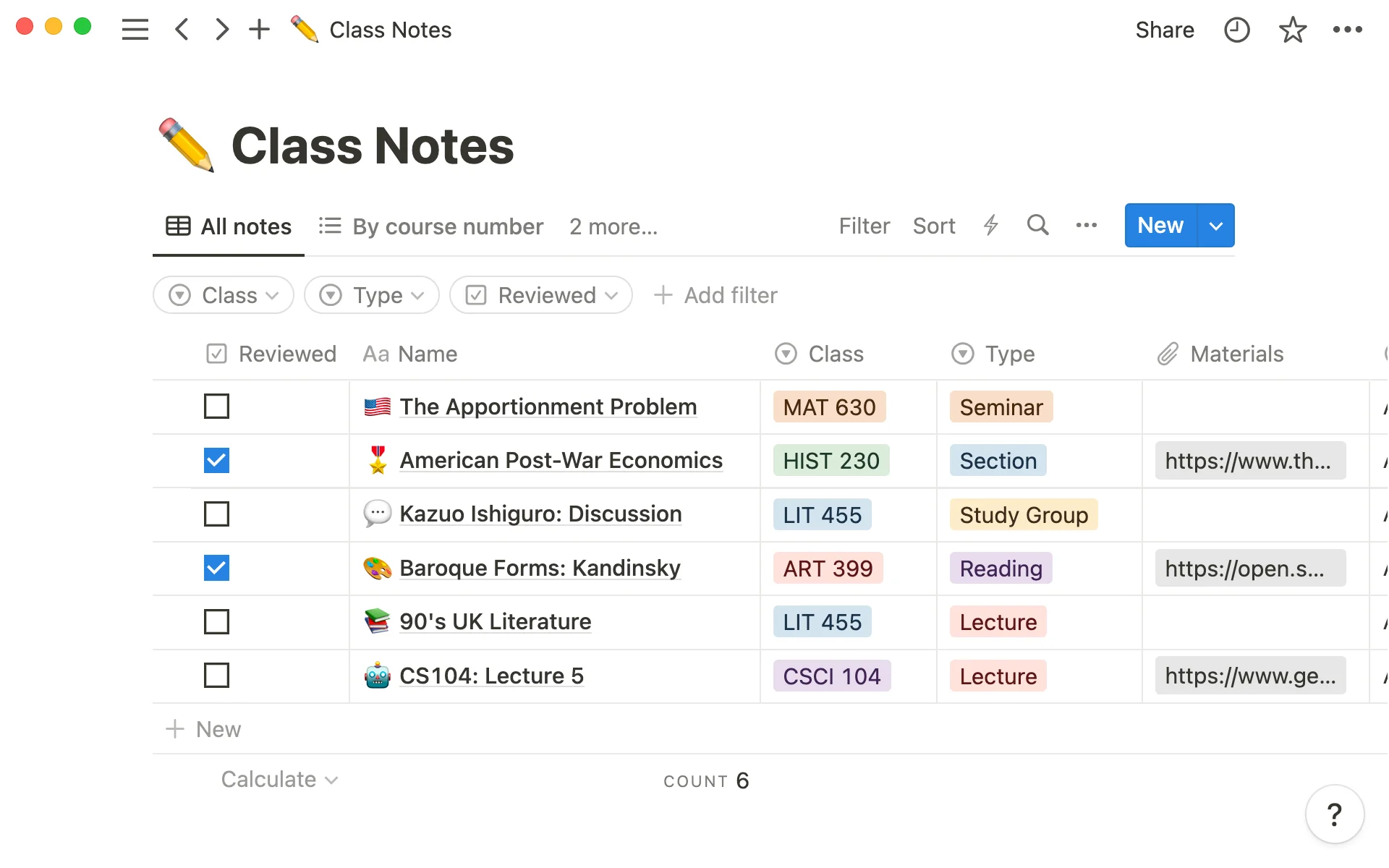 Notion's flexible workspace combines notes, databases, and wikis in one powerful tool.
Overview: Notion is an all-in-one workspace that combines notes, databases, wikis, and project management. It's incredibly flexible and powerful for organizing complex information.
Key Features:
- Databases: Create tables, boards, calendars, galleries of notes
- Templates: 1,000+ community templates for every use case
- Collaboration: Real-time editing with unlimited team members (free plan)
- Multimedia: Embed PDFs, videos, code, 50+ integrations
- Mobile apps: Full-featured iOS and Android apps
- Web clipper: Save articles and web pages directly
Best For:
- Students organizing class notes by semester/subject
- Teams needing shared knowledge bases
- People who want customizable organization
- Users managing complex projects
Pricing:
- Free: Unlimited pages and blocks for personal use
- Plus: $10/month (advanced features)
- Business: $15/month/user (teams)
Pros:
- ✅ Incredibly powerful and flexible
- ✅ Generous free tier
- ✅ Beautiful interface
- ✅ Strong community and resources
Cons:
- ❌ Steep learning curve initially
- ❌ Can feel overwhelming
- ❌ Handwriting support limited
- ❌ Requires internet for full functionality
Rating: ⭐⭐⭐⭐⭐ (5/5) - Best overall for organization
2. Obsidian - Best for Knowledge Management
 Obsidian's graph view visualizes connections between your notes, building a personal knowledge network.
Overview: Obsidian is a powerful knowledge base built on local Markdown files. It's designed for creating a "second brain" with bidirectional links connecting your thoughts.
Key Features:
- Graph view: Visualize connections between notes
- Bidirectional links: Link notes together like Wikipedia
- Local-first: Files stored on your device (privacy + speed)
- Plugins: 1,000+ community plugins for customization
- Markdown: Future-proof plain text format
- Canvas: Visual workspace for mapping ideas
Best For:
- Researchers building knowledge networks
- Writers organizing complex research
- Privacy-conscious users (local storage)
- Power users who customize workflows
Pricing:
- Free: Personal use with local sync
- Sync: $10/month (official cloud sync)
- Publish: $16/month (publish notes as website)
Pros:
- ✅ Own your data (local Markdown files)
- ✅ Incredibly powerful linking
- ✅ Fast and lightweight
- ✅ Strong community
Cons:
- ❌ Technical learning curve
- ❌ Not beginner-friendly
- ❌ Mobile apps less polished
- ❌ No built-in collaboration
Rating: ⭐⭐⭐⭐⭐ (5/5) - Best for knowledge workers
3. OneNote - Best Free Handwriting App
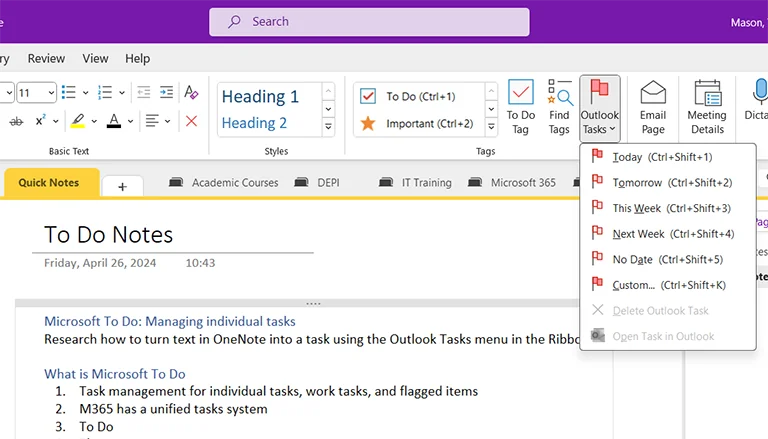 OneNote's notebook structure with handwriting support makes it the best free digital notetaker.
Overview: Microsoft OneNote is a digital notebook with excellent handwriting support and cross-platform compatibility. It's completely free with no limits.
Key Features:
- Handwriting: Best free handwriting experience on tablets
- Organization: Notebooks → Sections → Pages hierarchy
- Audio recording: Record while taking notes (synced)
- OCR: Search text in handwritten notes
- Free unlimited: No storage limits or feature restrictions
- Office integration: Works with Word, Excel, Teams
Best For:
- Students on a budget (completely free)
- Windows/Surface users
- People wanting handwriting + typing
- Office 365 users
Pricing:
- Free: Everything included, unlimited
Pros:
- ✅ Completely free with no limits
- ✅ Excellent handwriting support
- ✅ Works on all platforms
- ✅ Strong search capabilities
Cons:
- ❌ Interface feels dated
- ❌ Sync can be slow
- ❌ Less modern than competitors
- ❌ Limited formatting options
Rating: ⭐⭐⭐⭐½ (4.5/5) - Best free option
4. Evernote - Best for Clipping & Capturing
 Evernote's web clipper and document scanning make it ideal for capturing information from multiple sources.
Overview: Evernote pioneered digital notetaking and remains strong for capturing information from multiple sources with its powerful web clipper.
Key Features:
- Web clipper: Save articles, screenshots, PDFs
- Document scanning: OCR makes scanned docs searchable
- Templates: 100+ templates for common note types
- Tasks: Built-in task management
- Home dashboard: Quick access to recent notes
Best For:
- Researchers saving web content
- People who clip lots of articles
- Users wanting simple, straightforward notes
Pricing:
- Free: 60MB/month upload, 2 devices
- Personal: $15/month (unlimited devices)
- Professional: $18/month (advanced features)
Pros:
- ✅ Excellent web clipper
- ✅ Powerful search
- ✅ Mature and stable
- ✅ Good mobile apps
Cons:
- ❌ Free tier very limited (2 devices only)
- ❌ Expensive compared to alternatives
- ❌ Interface needs refresh
- ❌ Fewer features than Notion/Obsidian
Rating: ⭐⭐⭐⭐ (4/5) - Solid but pricey
5. Apple Notes - Best for Apple Ecosystem
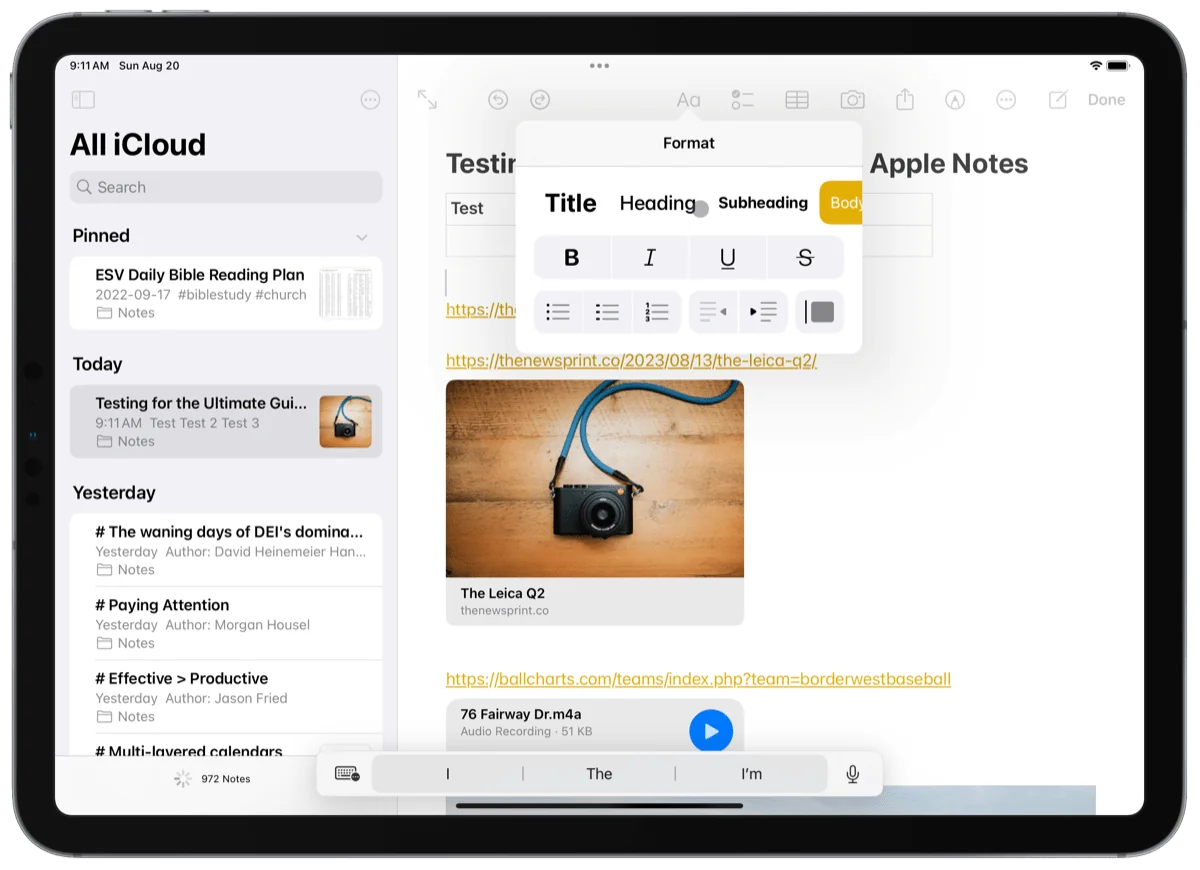 Apple Notes keeps things simple while packing powerful features like scanning and Apple Pencil support.
Overview: Apple Notes is a simple, elegant notetaking app built into every Apple device. Recent updates added powerful features while maintaining simplicity.
Key Features:
- Handwriting: Excellent Apple Pencil support
- Scanning: Built-in document scanner
- Collaboration: Share and collaborate on notes
- Smart folders: Auto-organize by tags and dates
- Quick Note: System-wide quick capture (macOS/iPadOS)
Best For:
- Apple ecosystem users (iPhone, iPad, Mac)
- People wanting simplicity
- Users who don't need advanced features
- Students in Apple-centric schools
Pricing:
- Free: Built into Apple devices
Pros:
- ✅ Completely free
- ✅ Perfect Apple ecosystem integration
- ✅ Simple and intuitive
- ✅ Good handwriting support
Cons:
- ❌ Apple devices only
- ❌ Limited organization options
- ❌ No Windows or Android support
- ❌ Fewer features than competitors
Rating: ⭐⭐⭐⭐ (4/5) - Best for Apple users
6. GoodNotes 6 - Best iPad Handwriting App
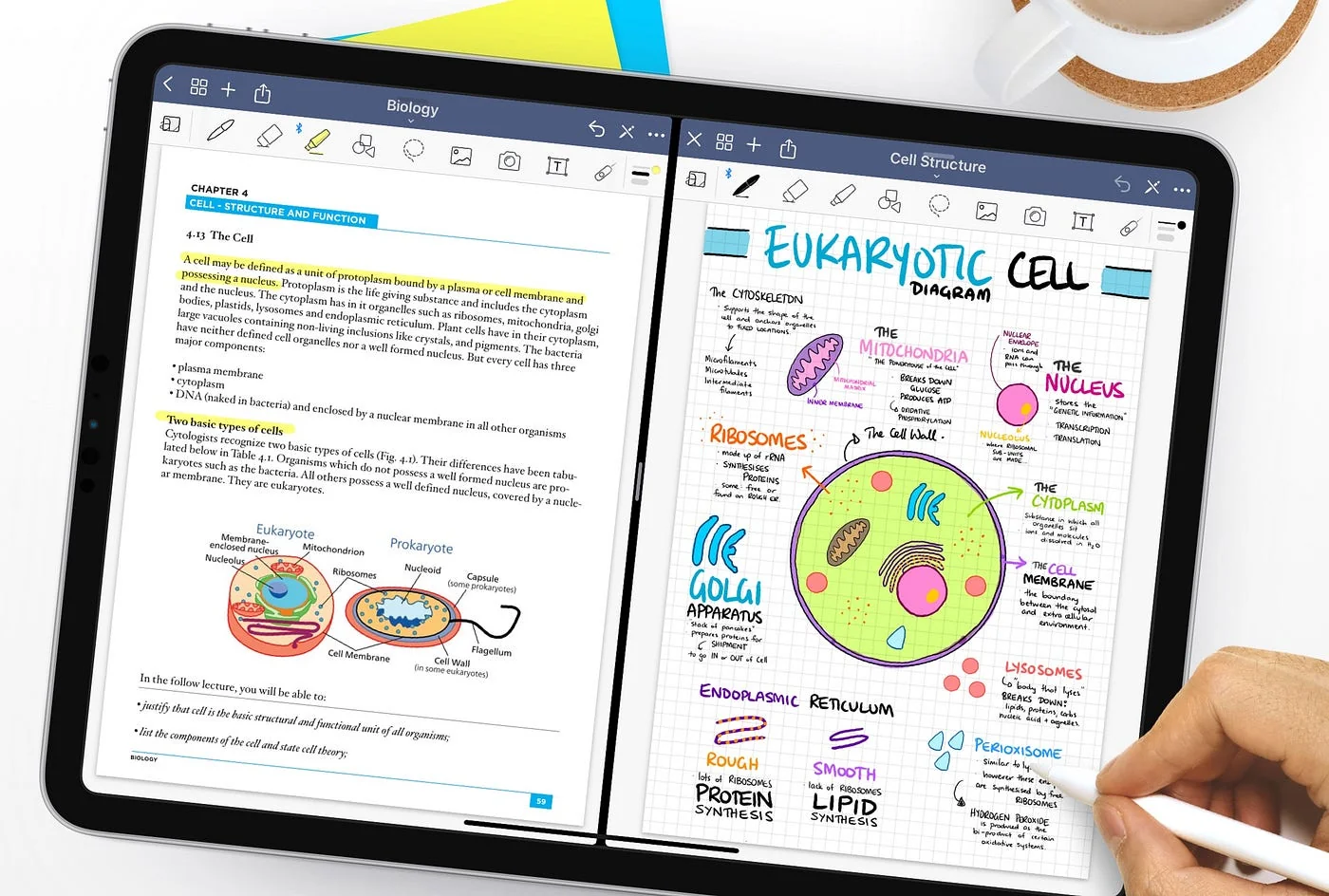 GoodNotes 6 delivers the best-in-class handwriting experience on iPad with Apple Pencil.
Overview: GoodNotes is a premium handwriting-focused app exclusively for iPad and Mac. It's designed specifically for Apple Pencil users.
Key Features:
- Handwriting: Best-in-class Apple Pencil experience
- PDF annotation: Import and mark up PDFs
- OCR: Handwriting becomes searchable text
- Templates: Custom notebook templates
- Organization: Folders and notebooks
- Audio recording: Record while writing
Best For:
- iPad users who write with Apple Pencil
- Students annotating textbooks (PDFs)
- People who prefer handwriting over typing
- Users wanting paper-like digital experience
Pricing:
- One-time: $9.99 (iPad + Mac + sync)
Pros:
- ✅ Outstanding handwriting experience
- ✅ One-time purchase (no subscription)
- ✅ Excellent PDF annotation
- ✅ Beautiful interface
Cons:
- ❌ Apple ecosystem only
- ❌ Less powerful organization than Notion
- ❌ No collaboration features
- ❌ Requires iPad for best experience
Rating: ⭐⭐⭐⭐⭐ (5/5) - Best for iPad handwriting
Digital Notetaking Devices
For users who want dedicated hardware, here are the best digital notetaking devices:
1. reMarkable 2 - Best E-Ink Experience
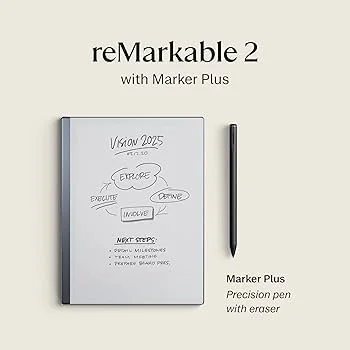 The reMarkable 2 offers the most paper-like digital writing experience with its e-ink display.
Overview: The reMarkable 2 is a minimalist e-ink tablet designed exclusively for reading and writing. It offers the most paper-like digital writing experience available.
Key Features:
- Paper-like feel: Best digital writing feel on the market
- Distraction-free: No apps, notifications, or web browser
- Battery life: 2+ weeks per charge
- Handwriting recognition: Converts handwriting to typed text
- Cloud sync: Syncs to mobile and desktop apps
- Templates: 40+ notebook templates
Best For:
- Writers and thinkers wanting distraction-free focus
- People who miss paper but need digital benefits
- Heavy readers who annotate PDFs/ebooks
- Minimalists
Pricing:
- Device: $299
- Connect subscription: $3/month (Google Drive integration, unlimited cloud storage)
Pros:
- ✅ Absolute best writing feel
- ✅ Zero distractions (single purpose)
- ✅ Incredible battery life
- ✅ Thin and light (0.19", 0.9 lbs)
Cons:
- ❌ Expensive upfront
- ❌ No color (grayscale only)
- ❌ Limited features vs apps
- ❌ Subscription for full features
Rating: ⭐⭐⭐⭐⭐ (5/5) - Best dedicated device
2. Supernote - Best Value E-Ink Device
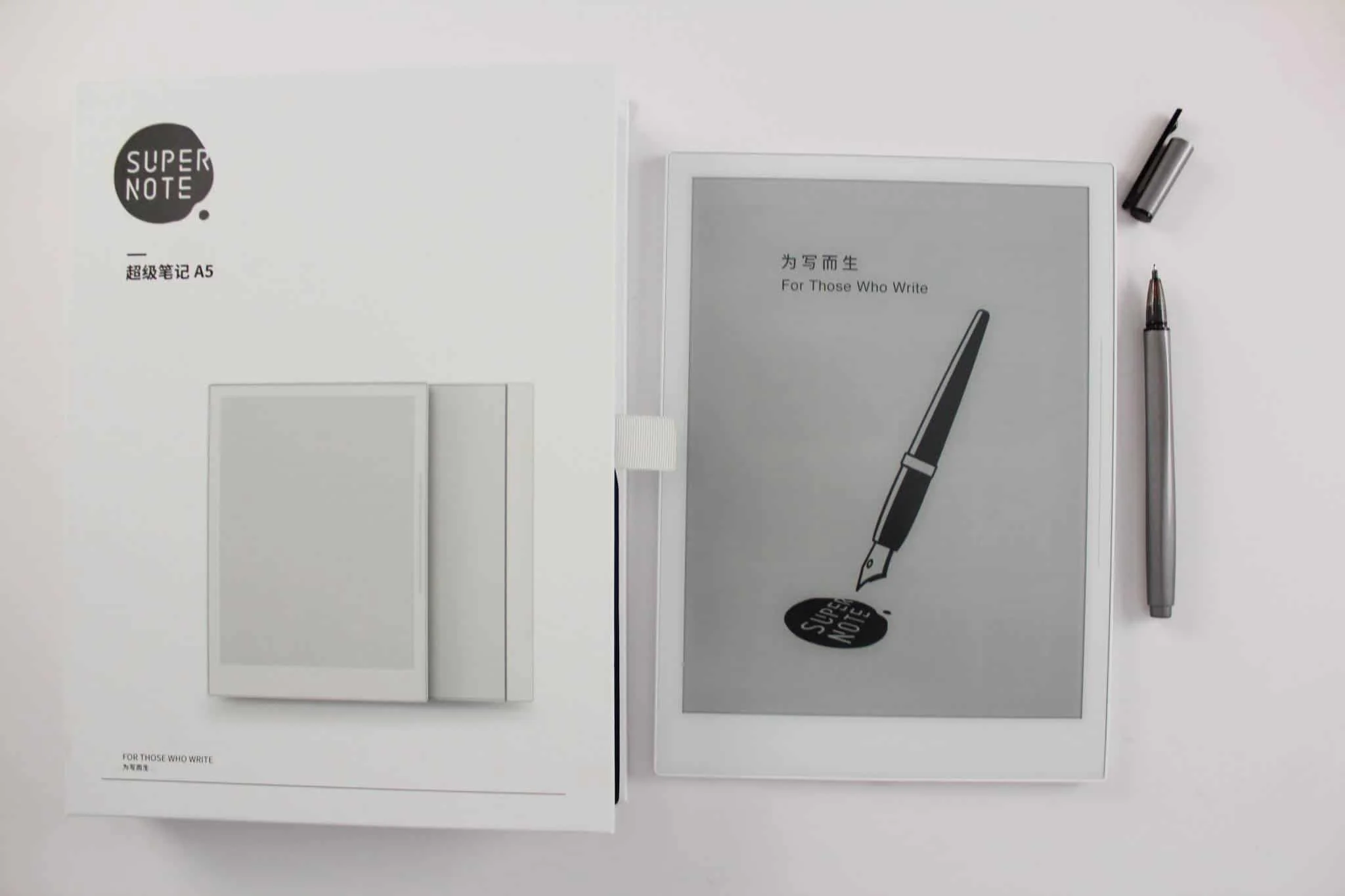 Supernote offers a premium e-ink writing experience with no subscription fees.
Overview: Supernote is a reMarkable competitor offering similar e-ink experience with more features and better value.
Key Features:
- Ceramic nib: Pen feels like real pencil on paper
- No subscription: All features included, no monthly fees
- Better software: More organizational features than reMarkable
- Handwriting recognition: On-device text conversion
- Gestures: Swipe shortcuts for common actions
Best For:
- Users wanting e-ink without subscriptions
- People who need more organization than reMarkable
- Budget-conscious buyers (better value)
Pricing:
- A5 X: $459 (standard size)
- A6 X2: $369 (compact size)
- No subscription required
Pros:
- ✅ No monthly fees (better long-term value)
- ✅ Excellent writing experience
- ✅ More features than reMarkable
- ✅ Great customer service
Cons:
- ❌ Less elegant design than reMarkable
- ❌ Smaller ecosystem
- ❌ Thicker and heavier
- ❌ Slower updates
Rating: ⭐⭐⭐⭐½ (4.5/5) - Best value
3. iPad with Apple Pencil - Best Versatility
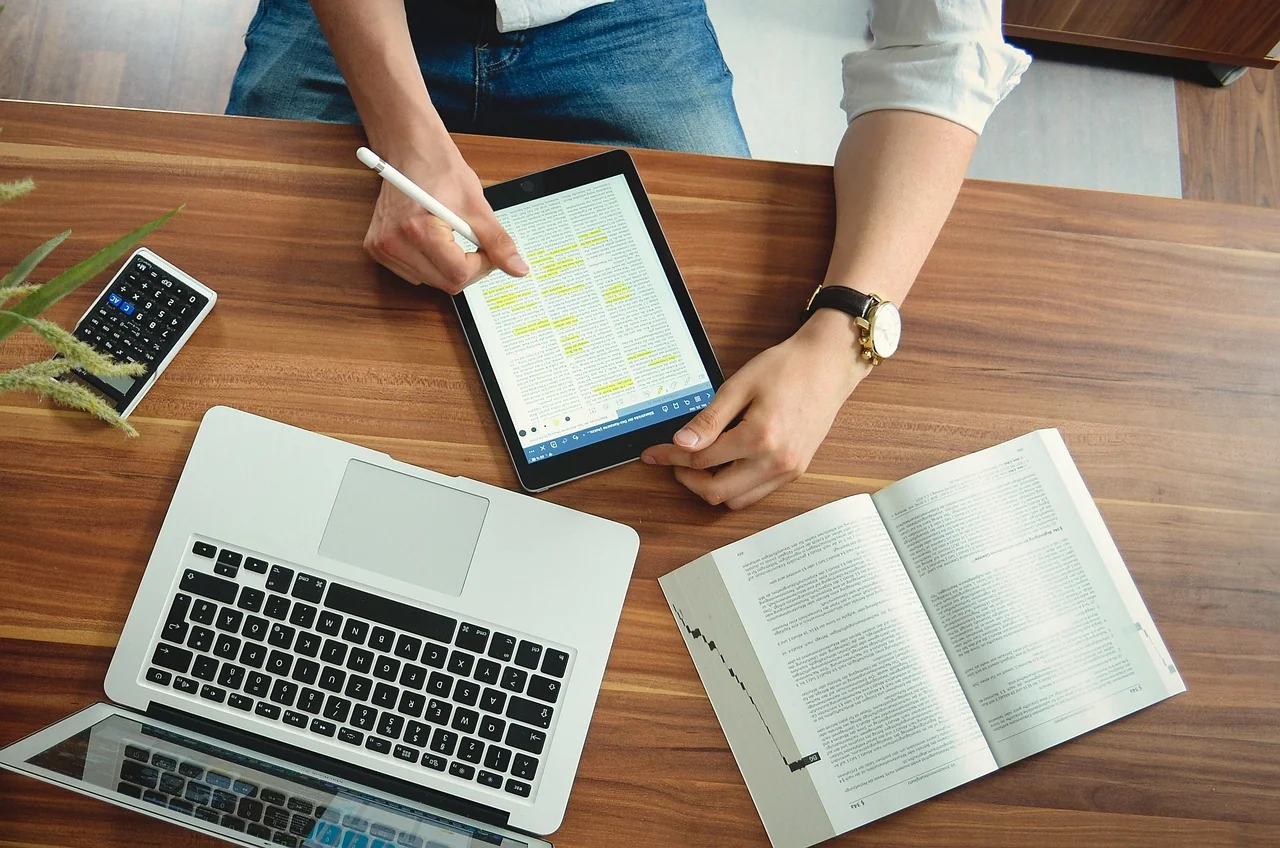 The iPad with Apple Pencil combines the best notetaking experience with full tablet versatility.
Overview: The iPad with Apple Pencil is the most versatile option, combining excellent notetaking with a full tablet experience.
Key Features:
- Apple Pencil: Industry-leading stylus (9ms latency)
- App ecosystem: Thousands of notetaking apps
- Versatile: Notes + productivity + entertainment + creativity
- Display: Stunning color display (ProMotion 120Hz on Pro)
- Power: Desktop-class performance
- Accessories: Keyboard cases for laptop replacement
Best For:
- Students needing textbooks + notes + apps
- Creative professionals (drawing, design)
- Users wanting one device for everything
- People in Apple ecosystem
Pricing:
- iPad 10th Gen: $449 + $79 Pencil = $528
- iPad Air: $599 + $129 Pencil = $728
- iPad Pro 11": $999 + $129 Pencil = $1,128
Pros:
- ✅ Extremely versatile (can replace laptop)
- ✅ Best app ecosystem
- ✅ Excellent handwriting experience
- ✅ Beautiful display and performance
Cons:
- ❌ Expensive (especially Pro models)
- ❌ Can be distracting (games, social media)
- ❌ Battery life shorter than e-ink (8-10 hours)
- ❌ Overkill if you only need notes
Rating: ⭐⭐⭐⭐⭐ (5/5) - Most versatile
How to Choose the Right Notetaker
Choosing the right digital notetaker depends on your specific needs, budget, and preferences. Here's a decision framework:
Decision Tree: Find Your Perfect Notetaker
START: What's your primary use case?
→ Student taking class notes
- Budget limited? → OneNote (free, unlimited) or Notion (free tier)
- Have iPad? → GoodNotes or Notability ($10-15)
- Prefer handwriting? → iPad + Apple Pencil or OneNote on Surface
- Want distraction-free? → reMarkable 2
→ Professional at work
- Team collaboration needed? → Notion (teams) or Evernote
- Solo, knowledge work? → Obsidian or Notion
- Lots of meetings? → OneNote (audio recording) or use KenzNote for AI meeting notes
- Prefer handwriting? → iPad or reMarkable
→ Researcher/Academic
- Building knowledge networks? → Obsidian (graph view, linking)
- PDF annotation heavy? → GoodNotes, Notability, or Boox device
- Need citation management? → Notion + Zotero or Obsidian + plugins
- Distraction-free reading/writing? → reMarkable or Supernote
→ Creative (Writer, Designer, Artist)
- Visual note-taking? → iPad + Procreate or Concepts
- Distraction-free writing? → reMarkable (drafting) + Obsidian (editing)
- Multimedia projects? → Notion or iPad
Key Decision Factors
1. Budget
- $0: OneNote, Apple Notes, Obsidian, Notion (free tiers)
- $0-15/month: Notion Plus, Evernote, subscription apps
- $300-600: reMarkable, Supernote, iPad (one-time)
2. Handwriting vs Typing
- Love handwriting: iPad + GoodNotes, reMarkable, Supernote
- Prefer typing: Notion, Obsidian, Evernote
- Both equally: OneNote, iPad, Samsung tablet
3. Platform Preference
- Apple user: Apple Notes, GoodNotes, Notability, iPad
- Windows user: OneNote, Notion, Obsidian, Surface
- Android user: Samsung tablet, Notion, Evernote, Boox
- Platform-agnostic: Notion, Obsidian, Evernote (web-based)
4. Organization Style
- Simple folders: Apple Notes, reMarkable
- Notebooks + sections: OneNote, Evernote
- Databases + views: Notion
- Networked notes: Obsidian, Roam Research
5. Collaboration Needs
- Heavy collaboration: Notion (real-time)
- Occasional sharing: Evernote, OneNote
- Solo only: Obsidian, reMarkable, personal apps
6. Distraction Level
- Want distractions (multitasking): iPad, Samsung tablet
- Need focus: reMarkable, Supernote
- Flexible: Desktop apps (Obsidian, Notion) - you control environment
Best Digital Notetakers by Use Case
For Students
🥇 Best Overall: OneNote (Free)
- Completely free with unlimited storage
- Excellent handwriting + typing support
- Works on any device (Windows, Mac, iPad, Android)
- Audio recording synced to notes (perfect for lectures)
🥈 Best Premium: iPad + GoodNotes ($528-728)
- Textbooks + notes + productivity in one device
- Outstanding handwriting with Apple Pencil
- Can replace laptop for many students
- Access to educational apps
🥉 Best Budget: Notion (Free)
- Organize notes by semester, class, assignments
- Create study databases and flashcards
- Collaborate on group projects
- Free unlimited for students
For Professionals
🥇 Best for Teams: Notion ($10-15/month)
- Real-time collaboration
- Company knowledge base
- Project management + notes in one
- Powerful databases for organizing information
🥈 Best for Meetings: OneNote + KenzNote
- OneNote for manual notes (free)
- KenzNote for AI meeting transcription ($0.99/meeting)
- Audio recording capabilities
- Microsoft ecosystem integration
🥉 Best for Focus: reMarkable 2 ($299 + $3/mo)
- Distraction-free environment
- Paper-like writing for deep thinking
- Perfect for strategy sessions and planning
- Long battery life for all-day meetings
For Researchers
🥇 Best Overall: Obsidian (Free-$10/mo)
- Graph view visualizes knowledge connections
- Bidirectional linking between concepts
- Local Markdown files (own your data)
- Powerful plugins for citations, PDFs
🥈 Best for PDFs: iPad + GoodNotes ($528-728)
- Annotate academic papers directly
- Search across handwritten annotations
- Organize by project/topic
- Export annotated PDFs
🥉 Best for Writing: reMarkable 2 ($299)
- Distraction-free drafting
- Long-form writing comfort
- Easy on eyes for hours of use
- Export to typed text
For Teams
🥇 Best Collaboration: Notion (Free-$15/user)
- Real-time collaborative editing
- Shared workspaces and wikis
- Comment and mention teammates
- Permission controls
🥈 Best Enterprise: Microsoft OneNote (Free)
- SharePoint and Teams integration
- Enterprise security and compliance
- IT department can manage centrally
- Already in Office 365 licenses
For Creative Professionals
🥇 Best Overall: iPad Pro + Apple Pencil ($1,128+)
- Combine notetaking with Procreate, Affinity, etc.
- Pressure-sensitive drawing
- Reference images alongside notes
- Portable creative workstation
🥈 Best for Writers: Obsidian + reMarkable
- reMarkable for distraction-free drafting
- Obsidian for editing and organizing
- Best of both worlds
Key Features Explained
Cloud Sync
What it does: Automatically keeps your notes synchronized across all devices via cloud storage.
Why it matters: Write on your iPad, reference on your phone, edit on your laptop - seamlessly.
Best tools for sync:
- Instant: Notion, Evernote (web-based)
- Fast: Apple Notes (iCloud), OneNote (OneDrive)
- Manual: Obsidian (can use Dropbox, iCloud, or paid sync)
- Device-based: reMarkable, Supernote (dedicated apps)
Tip: Enable offline mode on mobile apps so you can work without internet and sync later.
Handwriting Recognition (OCR)
What it does: Converts handwritten text into typed, searchable text using Optical Character Recognition.
Why it matters: Search your handwritten notes as easily as typed text. Export handwriting as editable documents.
Accuracy in 2026: Modern OCR achieves 95-98% accuracy for legible handwriting (huge improvement from 70% in 2020).
Best tools for OCR:
- Excellent: GoodNotes, Notability, OneNote
- Good: reMarkable, Supernote
- Basic: Nebo (specialized OCR app)
Tips for better recognition:
- Write legibly (not necessary to print, but avoid extreme cursive)
- Use consistent spacing
- Let OCR process after writing (don't rush it)
- Correct mistakes to train AI over time
Voice Recording & Transcription
What it does: Records audio while you take notes, syncing audio to written content.
Why it matters: In lectures or meetings, you can tap on any note and hear what was said at that moment.
Best tools with audio:
- OneNote - Free, syncs audio to notes
- Notability - Excellent audio scrubbing
- Evernote - Basic recording
For AI transcription of meetings: Use dedicated tools like KenzNote ($0.99/meeting) that automatically transcribe and summarize - see our AI Meeting Note Taker guide.
PDF Annotation
What it does: Import PDFs and mark them up with highlights, notes, and drawings.
Why it matters: Essential for students (textbooks) and professionals (contracts, reports).
Best tools for PDF:
- GoodNotes - Outstanding PDF features
- Notability - Excellent for annotation
- reMarkable - Best reading experience
- OneNote - Import PDFs as printouts
Features to look for:
- Highlight in multiple colors
- Add sticky notes and comments
- Export annotated PDFs
- Search within PDF text
Search Capabilities
What it does: Find any note instantly by searching keywords.
Why it matters: Thousands of notes become useless if you can't find what you need quickly.
Search types:
- Full-text: Search typed content (all tools)
- OCR search: Search handwritten notes (GoodNotes, OneNote, reMarkable)
- Tag search: Find by organizational tags
- Date search: Find by creation/modification date
- File search: Find attached documents
Best search:
- Most powerful: Notion, Obsidian (database filters)
- Fastest: Evernote (search optimized since 2008)
- Handwriting: GoodNotes, OneNote
Setup & Getting Started
Step-by-Step Setup Guide
Step 1: Choose Your Tool
Based on your needs and budget (use decision tree above), select your digital notetaker.
Step 2: Download/Purchase
- Apps: Download from App Store, Google Play, or vendor website
- Devices: Order from manufacturer (reMarkable.com, Supernote.com) or retailers (Apple, Best Buy)
Step 3: Initial Configuration
For Apps:
- Create account (or sign in with Google/Apple)
- Grant necessary permissions (sync, notifications)
- Explore default notebooks/pages
- Watch official tutorial videos (5-10 minutes)
For Devices:
- Charge fully before first use
- Connect to WiFi
- Create account for cloud sync
- Install companion apps on phone/computer
- Test pen and basic features
Step 4: Sync Setup (Multi-Device)
- Install app on all devices (phone, tablet, computer)
- Sign in with same account
- Enable background sync
- Test: Create note on one device, verify it appears on others
- Configure offline access (for mobile)
Step 5: Import Existing Notes
From paper:
- Scan pages with phone camera
- Use document scanner app (Adobe Scan, Microsoft Lens)
- Import scans into your digital notetaker
- Consider: Just start fresh (don't let this block you)
From other apps:
- Export from old tool (usually PDF or HTML)
- Import into new tool
- Most tools have import assistants for popular services
Step 6: Organization System Setup
For Students:
└── School
    ├── Spring 2026
    │   ├── Biology 201
    │   ├── English 102
    │   └── Math 301
    └── Fall 2025 (archive)
For Professionals:
└── Work
    ├── Projects
    │   ├── Project A
    │   └── Project B
    ├── Meetings
    └── Ideas
For Researchers:
└── Research
    ├── Literature Review
    ├── Methodology
    ├── Data Analysis
    └── Writing
Step 7: Workflow Integration
- Set default notetaking app on devices
- Create shortcuts/widgets for quick access
- Schedule weekly review time (organize and process notes)
- Backup periodically (export important notes)
Best Practices
Organization:
- Use consistent naming conventions
- Tag notes for easy finding
- Create templates for repeated note types
- Archive completed projects (don't delete)
- Review and consolidate weekly
Note-Taking:
- Use headings and structure (not wall of text)
- Link related notes together
- Add context (date, location, purpose)
- Include action items clearly
- Review and refine within 24 hours (while fresh)
Sync Troubleshooting:
- Check internet connection first
- Force sync (pull down to refresh)
- Log out and back in
- Clear cache (settings → clear data)
- Contact support if persistent
Backup Strategies:
- Cloud sync is NOT backup (need redundancy)
- Export important notes monthly (PDF)
- Use tool's backup feature (Obsidian → folder sync)
- Keep critical notes in multiple places
- Test restore process periodically
Pricing Guide
Free Options (No Cost)
Best Free Apps:
-
OneNote - Completely free, unlimited
- Best for: Everyone on budget
- Limitations: None (truly unlimited)
-
Apple Notes - Free with Apple devices
- Best for: Apple ecosystem users
- Limitations: Apple devices only
-
Notion - Free for personal use
- Best for: Students, individuals
- Limitations: 1,000 blocks (very generous), no advanced features
-
Obsidian - Free for personal use
- Best for: Knowledge workers
- Limitations: No official cloud sync (can use Dropbox)
-
Google Keep - Free with Google account
- Best for: Simple quick notes
- Limitations: Very basic features
When free is enough:
- Students on tight budgets
- Casual note-takers
- People trying digital notetaking first time
- Users with simple needs (no collaboration, no advanced features)
Freemium Models
What's included in free tiers:
Evernote Free:
- 60MB uploads/month (about 60 pages)
- 2 devices only
- Basic notes, web clipper
Notion Free:
- Unlimited pages and blocks for personal use
- All features except advanced permissions
- Generous enough for most students
When to upgrade:
- Need more than 2 devices (Evernote)
- Team collaboration required
- Advanced features needed (databases, automation)
- Hit upload limits repeatedly
Paid Tools
Monthly Subscriptions:
| Tool | Price/Month | Best For | Key Features |
|---|---|---|---|
| Notion Plus | $10 | Power users | Unlimited uploads, advanced features |
| Evernote Personal | $15 | Web clippers | Unlimited devices, 10GB/month |
| Roam Research | $15 | Researchers | Networked notes, graph view |
| Notability | $15/year | iPad users | Premium handwriting features |
One-Time Purchases:
| Tool | One-Time Cost | Platform | Benefit |
|---|---|---|---|
| GoodNotes 6 | $10 | iOS/Mac | Lifetime access, no subscriptions |
| Notability | $15/year | iOS/Mac | Annual but affordable |
Device Costs (One-Time):
| Device | Price | Stylus Included? | Best For |
|---|---|---|---|
| reMarkable 2 | $299 + $3/mo sub | ✅ Yes | Paper-like writing |
| Supernote A5 X | $459 | ✅ Yes | No subscription |
| iPad 10th Gen | $449 + $79 Pencil | ❌ No | Versatility |
| iPad Air | $599 + $129 Pencil | ❌ No | Performance |
| iPad Pro 11" | $999 + $129 Pencil | ❌ No | Professional |
| Galaxy Tab S9 | $800 + stylus included | ✅ Yes | Android users |
Best Value Analysis
Best value for students:
- OneNote (free) - Can't beat $0
- Notion (free) - Powerful and free
- iPad 10th Gen + GoodNotes ($528) - If you can afford it
Best value for professionals:
- Notion Plus ($10/mo) - Replaces multiple tools
- Obsidian (free) + Sync ($10/mo optional) - Own your data
- OneNote (free) - Enterprise users already have it
Best value for devices:
- Supernote ($459) - No subscription, excellent device
- iPad 10th Gen ($528 with Pencil) - Most versatile
- reMarkable 2 ($299 + $36/year) - Best writing, ongoing cost
5-Year Total Cost Comparison:
| Option | Year 1 | Year 5 | Total 5 Years |
|---|---|---|---|
| OneNote (free) | $0 | $0 | $0 |
| Notion | $120 | $120 | $600 |
| GoodNotes + iPad | $528 | $0 | $528 |
| reMarkable 2 | $335 | $36 | $479 |
| Supernote | $459 | $0 | $459 |
| Evernote Personal | $180 | $180 | $900 |
Winner: OneNote at $0 total, but if willing to spend, one-time purchases (GoodNotes, Supernote) offer best long-term value.
Frequently Asked Questions
What is the best digital notetaker overall?
There's no single "best" - it depends on your needs:
- Best free: OneNote (unlimited, all platforms)
- Best for organization: Notion (databases, flexibility)
- Best for handwriting: iPad + GoodNotes or reMarkable 2
- Best for knowledge work: Obsidian (networked notes)
- Best budget device: Supernote ($459, no subscription)
Can I use a digital notetaker offline?
Yes, most tools work offline:
- Apps: Download content for offline access (sync when online)
- Devices: Work completely offline, sync when connected
- Exception: Web-only apps need internet (rare now)
How do I sync notes across devices?
All modern digital notetakers sync automatically via cloud:
- Sign in with same account on all devices
- Enable background sync in settings
- Notes sync automatically within seconds
- Works across iOS, Android, Windows, Mac, Web
Are digital notes secure and private?
Security varies by tool:
- Most secure: Obsidian (local files), Apple Notes (encrypted)
- Enterprise-grade: Microsoft OneNote, Notion for teams
- Standard encryption: Evernote, most cloud services
- Consider: Where data stored, encryption type, company privacy policy
Can I export my notes if I switch tools?
Yes, but ease varies:
- Easy exports: Markdown (Obsidian), PDF (all tools), HTML (Notion, Evernote)
- Recommended: Export major notes monthly as backup
- Avoid lock-in: Choose tools with standard export formats
What's the best notetaker for college students?
Top 3 for students:
-
OneNote (free) - Best if budget is tight
- Completely free, unlimited storage
- Works on any device
- Audio recording for lectures
- Handwriting support on tablets
-
iPad + GoodNotes ($528) - Best if you can invest
- Replace textbooks + notebooks + laptop for many students
- Outstanding handwriting with Apple Pencil
- Annotate PDFs (digital textbooks)
- Educational app ecosystem
-
Notion (free) - Best for organization
- Organize by semester, class, assignment
- Create study databases
- Collaborate on group projects
- Free unlimited for students
Can I take handwritten notes digitally?
Absolutely! Modern handwriting technology is excellent:
- Best apps: GoodNotes, Notability, OneNote (on tablets)
- Best devices: iPad + Apple Pencil, reMarkable, Supernote
- Accuracy: 95-98% OCR (handwriting becomes searchable text)
- Feel: Especially reMarkable feels very close to paper
How do digital notes help with studying?
Digital notes offer major study advantages:
- ✅ Search instantly - Find any topic in seconds vs flipping pages
- ✅ Never lose notes - Cloud backup prevents loss
- ✅ Organize flexibly - Rearrange, link, tag notes
- ✅ Create flashcards - Many tools integrate spaced repetition
- ✅ Share with classmates - Easy collaboration
- ✅ Review anywhere - Study on phone, tablet, or computer
Studies show: Students using digital notes score 34% higher on exams due to better organization and review capabilities.
Do I need special hardware?
For apps: No special hardware needed
- Works on devices you already own
- Smartphone, tablet, or computer is sufficient
- Optional: Stylus improves handwriting (Apple Pencil, Surface Pen, generic stylus)
For best handwriting:
- iPad + Apple Pencil ($528+)
- Microsoft Surface + Surface Pen ($600+)
- Samsung Galaxy Tab + S Pen (included, $600+)
- Dedicated: reMarkable ($299), Supernote ($459)
What's better: app or device?
Choose apps if:
- ✅ Budget limited (many free, work on existing devices)
- ✅ Need versatility (notes + other tasks)
- ✅ Want powerful organization and search
- ✅ Require collaboration features
Choose devices if:
- ✅ Prefer handwriting heavily
- ✅ Want paper-like writing feel
- ✅ Need distraction-free environment
- ✅ Value single-purpose tools
- ✅ Budget allows ($300-600)
Most people should start with apps (free, low-risk). If you discover you love digital notetaking and want better handwriting, then invest in a device.
Can digital notetakers replace my laptop?
Partially, depending on device:
iPad Pro with keyboard:
- ✅ Yes for: Notes, email, browsing, media, light productivity
- ❌ Limited for: Heavy coding, complex Excel, professional software
Surface Pro:
- ✅ Yes - Full Windows laptop that also supports pen input
reMarkable/Supernote:
- ❌ No - These are note/reading devices only
Most realistic: Digital notetaker supplements your laptop rather than replacing it.
Notion vs Evernote - which is better?
Choose Notion if:
- Want customization and flexibility
- Need databases and advanced organization
- Collaborate with teams frequently
- Prefer modern, beautiful interface
- Free tier is enough (generous for personal use)
Choose Evernote if:
- Clip lots of web content (best web clipper)
- Want simple, straightforward notes
- Need mature, stable product
- Don't need databases or complex features
Winner: Notion for most users (more powerful, better free tier)
iPad vs reMarkable - what should I buy?
Choose iPad if:
- Want versatility (notes + apps + entertainment)
- Need color display
- Use iOS/Apple ecosystem
- Want most app choices
- Budget allows ($500-1,200)
Choose reMarkable if:
- Want paper-like writing feel (best in category)
- Need distraction-free environment
- Prefer grayscale e-ink (easy on eyes)
- Want 2-week battery life
- Focus on writing and reading only
- Budget $300-450
Bottom line: iPad is versatile but distracting. reMarkable is focused but limited. Most people prefer iPad's flexibility.
What's the difference between GoodNotes and Notability?
Both are excellent iPad handwriting apps. Key differences:
GoodNotes 6:
- ✅ Better organization (folders, notebooks)
- ✅ Better PDF annotation
- ✅ One-time purchase ($10)
- Best for: Students who annotate textbooks heavily
Notability:
- ✅ Better audio recording (synced to notes)
- ✅ Better for live note-taking (faster interface)
- ✅ Subscription ($15/year)
- Best for: Recording lectures while taking notes
Can't go wrong with either - try both (free trials available).
Related Resources
Want to dive deeper into digital note-taking and productivity?
- Best AI Meeting Note Taker Apps 2026
- What is an AI Meeting Assistant?
- Cornell Method Notes: Complete Guide
- Best Apps for Cornell Notes
- How to Take Cornell Notes Digitally
- Meeting Notes Templates: Free Examples
- Best Notetaker Apps for Students
- tl;dv Review 2026: Features, Pricing & Alternatives
Ready to Transform Your Meeting Notes?
Digital notetaking has reached maturity in 2026. Whether you choose a free app like OneNote, a powerful tool like Notion, or a dedicated device like reMarkable, you'll enjoy searchability, cloud sync, and collaboration features impossible with paper.
But for meetings specifically, stop wasting time on manual notes. Let AI capture every detail while you focus on the conversation.
Start with KenzNote:
- ✅ 1 free meeting to try (no credit card)
- ✅ $0.99 per meeting after (or $29.99/month unlimited)
- ✅ No calendar access required (paste links when needed)
- ✅ 95-98% accuracy across all platforms
- ✅ 2-5 minute delivery after meetings
Questions? Email [email protected]
References & Citations
- [1]Note Taking App Market Report 2026The Business Research Company. January 15, 2026https://www.thebusinessresearchcompany.com/report/note-taking-app-global-market-report
- [2]The effect of notetaking method on academic performance: A systematic review and meta-analysisScienceDirect. September 1, 2021https://www.sciencedirect.com/science/article/abs/pii/S0361476X21000849
All external sources have been reviewed for accuracy and relevance. Last verified: October 2026.

About Muhammad Abuelenin
Muhammad is the co-founder of KenzNote, passionate about building tools that enhance productivity and collaboration. With expertise in full-stack development and AI-powered solutions, he's dedicated to helping teams work smarter through innovative technology.
Ready to transform your meetings?
KenzNote automatically captures meeting insights, extracts action items, and generates summaries so you can focus on the conversation instead of taking notes.
Try KenzNote Free