
Quick Answer
To record a Zoom meeting without a bot: use Zoom's built-in local recording feature (available on all paid plans and free plans for hosts) or record locally with your operating system's screen recording tool, then upload the audio or video file to an AI transcription service like KenzNote for notes and summaries. No bot joins the call, no bot appears in the participant list, and no third-party service has direct access to your meeting.
Key Takeaways
- Zoom's native local recording records to your own device without any third-party bot present
- Zoom's cloud recording is different: it sends your meeting to Zoom's servers, not a third-party AI service
- AI bots (like those used by Otter, Fireflies, and others) join your meeting as a participant; hosts and participants can see them in the participant list
- Botless recording matters for sensitive client calls, confidential discussions, and meetings where participant trust is a priority
- After recording locally, you can upload the file to KenzNote for AI transcription, summaries, and action items
- Recording consent requirements apply regardless of method; always notify participants before recording
Table of Contents
- Why Go Botless?
- Method 1: Zoom's Native Local Recording
- Method 2: Zoom Cloud Recording
- Method 3: OS-Level Screen Recording
- Method 4: Upload to KenzNote After Recording
- Comparison: Bot vs Botless Recording
- Legal Considerations: Consent Still Required
- Frequently Asked Questions
- Related Resources
If you have ever joined a Zoom call and seen "Otter.ai" or "Fireflies Notetaker" appear in the participant list, you know what an AI bot looks like in a meeting. Some people find it helpful. Others find it unsettling, particularly clients, executives, and anyone who is not familiar with how these tools work.
There are good reasons to want meeting notes without a visible bot: sensitive negotiations, legal or HR discussions, investor calls where NDA implications are a concern, or simply situations where a client would object to a third-party service being present. This guide covers your options.
Why Go Botless?
The standard AI meeting notetaker workflow involves an AI bot joining your call as a participant. This bot records the audio, sends it to the vendor's servers for transcription, and returns a transcript and summary. It works well but has some implications:
Visibility. Every participant can see the bot in the participant list. This can prompt questions, objections, or discomfort from clients or guests who were not expecting it.
Third-party access. When a bot joins your call, the audio is being processed by a third-party service in real time. For calls that involve confidential business information, this is a consideration.
Consent complexity. Depending on your jurisdiction and the type of meeting, recording consent rules apply. A bot joining a call makes the recording more visible, which can trigger more explicit consent requirements. See our guide on whether it is legal to record meetings for jurisdiction-specific detail.
Client objections. Some clients have internal policies against allowing third-party recording bots in their calls. If you try to add a bot to a call with a major enterprise client, their IT or legal team may have told them to object.
The alternative: record locally, then use a privacy-first AI tool to process the recording after the fact.
 Botless recording keeps your participant list clean and your audio on your own devices until you choose to upload it.
Method 1: Zoom's Native Local Recording
Zoom's local recording feature is the simplest botless recording option for Zoom users. It records the meeting directly to your computer without sending audio to any third-party service.
Who can use it:
- Meeting hosts on all Zoom plans (including free)
- Participants, if the host grants them recording permission
How to enable and use local recording:
- Open Zoom Settings on your computer
- Go to Recording in the left sidebar
- Ensure "Local Recording" is enabled
- Start your Zoom meeting as the host
- Click the Record button in the meeting toolbar
- Select "Record on this Computer" (not "Record to the Cloud")
- Stop recording when the meeting ends; Zoom will process the file
- Find your recording in the default Zoom recordings folder (usually Documents/Zoom)
Output files: Zoom local recording produces an MP4 video file, an M4A audio-only file, and a text chat file. The audio-only M4A file is what you need for transcription upload.
Limitations:
- Only the host's local machine records the audio; if the host leaves early, recording stops
- Local recording does not include automatic transcription; you will need to upload elsewhere
- Storage is limited to your local drive capacity
Method 2: Zoom Cloud Recording
Zoom's cloud recording is different from a third-party bot: it records the meeting on Zoom's own servers rather than a third-party AI service. No external bot joins the call.
However, it is worth understanding what cloud recording actually does: it sends your meeting audio and video to Zoom's infrastructure. You are trusting Zoom (which you already do when using the platform) rather than trusting a separate AI vendor.
Zoom's cloud recording includes a basic automatic transcription feature, but it is less accurate and feature-rich than dedicated AI meeting tools. For detailed summaries and action item extraction, you will still want to process the transcript through a more capable AI tool.
Who can use it:
- Paid Zoom plans only (Pro, Business, or higher)
- Must be enabled in account settings
Advantages over local recording:
- Recording is stored in the cloud, accessible from any device
- Does not depend on a single participant's machine staying in the meeting
- Includes basic AI transcription built in
Use cloud recording if: you want the recording centralized in Zoom's platform and you do not need the most accurate transcription available.
Method 3: OS-Level Screen Recording
If you want to record a Zoom meeting without using Zoom's recording features at all, your operating system's built-in screen recording can capture the audio.
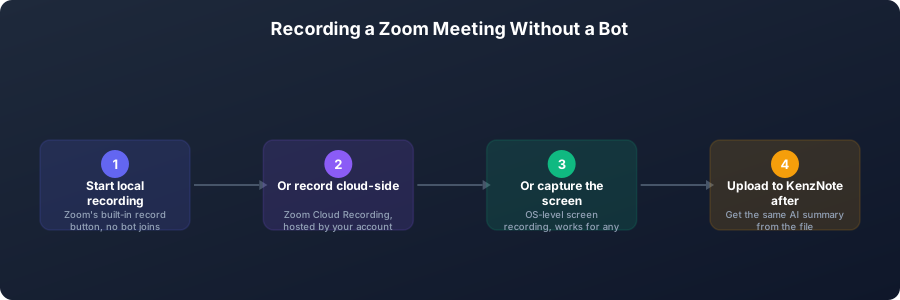 Four ways to get a Zoom recording without a bot ever joining the call.
On macOS:
- Open QuickTime Player
- Select File > New Screen Recording
- Configure to capture the full screen or a window
- Enable microphone audio capture
- Start recording before the meeting begins
On Windows:
- Use the Xbox Game Bar (Win + G)
- Or use the built-in Snipping Tool in Windows 11 (supports screen + audio recording)
Limitations:
- Audio quality depends on your microphone; screen recording captures what your microphone captures, not the clean mixed audio that Zoom's recording produces
- Remote participant audio may be lower quality in some configurations
- The resulting file needs to be processed separately for transcription
This method is primarily useful when you need a fallback recording option and cannot or do not want to use Zoom's native recording.
Method 4: Upload to KenzNote After Recording
This is the workflow that combines botless privacy with full AI-powered meeting notes.
- Record your Zoom meeting locally using Method 1 (or any of the above methods)
- Locate your audio file (the M4A from Zoom local recording works well)
- Upload the file to KenzNote
- Receive your transcript, AI summary, action items, and meeting chat capability
This approach gives you the best of both worlds: no bot appears in your meeting, your audio stays on your device until you choose to upload it, and you still get the full AI meeting notes experience including the ability to ask questions about the meeting in natural language.
KenzNote charges $0.99 per meeting for this workflow, the same as for bot-based recording. There is no premium for the upload path. For the botless recorder workflow in more detail, see our guide to bot-free AI meeting recording in 2026.
If you would rather skip the manual recording step entirely, KenzNote also supports the faster bot-based option: paste your Zoom meeting link into KenzNote, and the bot joins within seconds to record, transcribe, and summarize the meeting automatically. This is worth using when convenience matters more than staying botless, such as internal meetings where no one minds an AI participant.
 Recording locally and uploading to KenzNote keeps your audio off third-party servers until you explicitly choose to share it.
Comparison: Bot vs Botless Recording
| Factor | AI Bot in Meeting | Local Record + Upload |
|---|---|---|
| Visible in participant list | Yes | No |
| Audio sent to third party | In real time | After meeting, on your timeline |
| Consent transparency | Bot is visible indicator | Must notify participants separately |
| Setup required | Calendar sync / meeting link | Start recording manually |
| Transcription quality | High | High (same underlying models) |
| Works if you forget | Yes (bot joins automatically) | No (manual start required) |
| Privacy control | Lower | Higher |
| Works for all meeting types | Yes | Yes (any recorded audio) |
The trade-off is primarily between convenience and control. Bots are more automatic. Local recording requires a manual step but keeps your audio on your own device until you decide to upload it.
Legal Considerations: Consent Still Required
Recording locally does not exempt you from meeting recording consent laws. Whether you record with a bot or with a local file, you are still recording the meeting, and the same legal requirements apply.
In most US states, one-party consent is sufficient: if you are a participant in the meeting and you are recording, you do not need to notify others. But several US states (California, Illinois, Maryland, and others) require all-party consent. In the European Union, GDPR creates additional obligations around recording personal data.
As a practical matter: tell participants at the start of the meeting that you are recording. This is both legally prudent and simply good practice. See our detailed guide on recording meeting legality for specific state and jurisdiction rules.
Frequently Asked Questions
Can participants tell if I am recording a Zoom meeting locally?
Zoom displays a recording indicator (a red dot with "Recording") to all participants when local or cloud recording is active. Participants will know the meeting is being recorded; they just will not see an AI bot in the participant list. You cannot record a Zoom meeting without participants being notified of the recording status.
Does Zoom local recording include transcription?
No. Zoom local recording produces an audio or video file but does not automatically transcribe it. You need to upload the file to a transcription service like KenzNote to get a text transcript and AI summary.
Is Zoom cloud recording private?
Zoom cloud recordings are stored on Zoom's servers, not a third-party AI service's servers. However, Zoom's terms of service grant Zoom certain rights to use data on its platform. If you need maximum data privacy, local recording followed by upload to a privacy-first service is the more controlled option.
What audio format should I upload to KenzNote?
KenzNote accepts common audio and video formats including MP4, M4A, MP3, and WAV. Zoom's local recording produces M4A (audio-only) and MP4 (video with audio) files; both work for upload.
Can I record a Zoom meeting as a participant, not a host?
Only if the host grants you recording permission. Zoom restricts local recording to the host by default; the host can enable recording permission for specific participants from the participant management panel during the meeting.
Does uploading a recording to KenzNote mean my meeting is stored on KenzNote's servers?
Your recording is processed by KenzNote to generate the transcript and summary. KenzNote contractually guarantees that your content is never used to train AI models. You can delete your recordings from KenzNote at any time. See our full explanation of how KenzNote handles your data.
Related Resources
References & Citations
- [1]Gartner Predicts 75% of World Population Will Have Personal Data Covered Under Modern Privacy Regulations by 2025Gartner. November 14, 2022https://www.gartner.com/en/newsroom/press-releases/2022-11-14-gartner-predicts-75-of-world-population-will-have-personal-data-covered-under-modern-privacy-regulations-by-2025
- [2]The Hybrid Work Trend Has Created a New Kind of MeetingMicrosoft WorkLab. September 1, 2023https://www.microsoft.com/en-us/worklab/the-hybrid-work-trend-has-created-a-new-kind-of-meeting
All external sources have been reviewed for accuracy and relevance. Last verified: September 2026.

About KenzNote Team
The KenzNote team is dedicated to helping teams capture better meeting insights and transform how they collaborate. With backgrounds in AI, product design, and enterprise software, we're building the future of meeting productivity.
Ready to transform your meetings?
KenzNote automatically captures meeting insights, extracts action items, and generates summaries so you can focus on the conversation instead of taking notes.
Try KenzNote Free