
Quick Answer
To transcribe Google Meet meetings, use an AI meeting assistant like KenzNote that joins your call, records audio, and generates transcripts with 95%+ accuracy. Three methods work: (1) Send a bot to live meetings by pasting the Google Meet link; it joins automatically and transcribes in real-time, (2) Schedule a bot for future meetings with date/time, or (3) Upload pre-recorded Google Meet files for transcription. KenzNote costs $0.99 per meeting or $29.99/month unlimited, requires no calendar access (privacy-first), and delivers formatted transcripts with AI summaries and action items within 2-5 minutes after your meeting ends.
Key Takeaways
- Three transcription methods: Send bot to live meetings, schedule for future meetings, or upload recorded files
- 95%+ transcription accuracy achieved with modern AI models, rivaling professional human transcribers
- No calendar access required with KenzNote; just paste the Google Meet link when you need it (better privacy)
- Automatic AI features included: Speaker identification, meeting summaries, action item extraction, and searchable transcripts
- Processing takes 2-5 minutes for most meetings; you'll have formatted notes before you finish your post-meeting coffee
- Pay-per-meeting option ($0.99/meeting) makes it affordable for occasional users vs. monthly subscriptions
- Multi-language support including English, Spanish, French, German, Portuguese, and automatic language detection
- Google Workspace not required -KenzNote works for everyone, unlike Google Meet's built-in transcription
Table of Contents
- Why Transcribe Google Meet Meetings?
- Method 1: Send KenzNote Bot to Your Live Meeting
- Method 2: Schedule Bot for Future Meetings
- Method 3: Upload Pre-Recorded Google Meet Files
- Why Choose KenzNote for Google Meet Transcription?
- Tips for Better Google Meet Transcriptions
- Common Questions About Google Meet Transcription
- Real-World Use Cases
- Get Started with Google Meet Transcription Today
How to Transcribe Google Meet Meetings: Complete Guide for 2026
Need to transcribe your Google Meet meetings automatically? You're in the right place. This guide shows you exactly how to get accurate transcriptions, AI-generated summaries, and action items from every Google Meet session.
Why Transcribe Google Meet Meetings?
Before diving into the how-to, here's why transcription matters:
- Never miss important details - Participants can focus on the conversation instead of taking notes
- Easy reference - Search through meeting transcripts to find specific discussions or decisions
- Better accountability - Automatically extract action items and assignments from conversations
- Team alignment - Share complete meeting records with team members who couldn't attend
- Compliance and documentation - Maintain accurate records for legal, compliance, or training purposes
According to recent research, professionals spend 15-20 hours per week in meetings but only retain about 25% of what's discussed. Transcription ensures nothing important gets lost.
📊 Fact Box: Meeting Retention Statistics
- Professionals spend 15-20 hours per week in meetings
- Only 25% of meeting content is retained without transcription
- 65% of important action items are forgotten within 24 hours
- Teams using transcription see 40% better task completion rates
- 3.2 billion Google Meet meetings happen annually worldwide
Sources: Microsoft Work Trend Index, Google Workspace Report
Which Transcription Method Should You Use?
 Decision flowchart: Choose the right transcription method based on your meeting timing.
Use this decision tree to quickly choose the best approach:
START: When is your Google Meet meeting?
│
├─ Meeting is happening RIGHT NOW
│  │
│  └─ → Method 1: Send Bot to Live Meeting
│      ✅ Instant join (30 seconds)
│      ✅ Real-time transcription
│      ✅ Get notes immediately after
│
├─ Meeting is SCHEDULED for later (future)
│  │
│  └─ How soon?
│     │
│     ├─ More than 1 hour away
│     │  └─ → Method 2: Schedule Bot in Advance
│     │      ✅ Set it and forget it
│     │      ✅ Bot joins automatically
│     │      ✅ Perfect for recurring meetings
│     │
│     └─ Less than 1 hour away
│        └─ → Method 1: Send Bot to Live Meeting
│            (Just wait and send when it starts)
│
└─ Meeting ALREADY HAPPENED (have recording)
   │
   └─ → Method 3: Upload Recording File
       ✅ Works with any past meeting
       ✅ Supports MP3, MP4, WAV, M4A, MOV, AVI
       ✅ Same accuracy and features
Quick recommendations:
- Meeting happening now → Send Bot to Live Meeting (Method 1)
- Future meeting → Schedule Bot in Advance (Method 2)
- Have recording file → Upload Recording (Method 3)
- Recurring weekly meeting → Schedule Bot with recurrence (Method 2)
Method 1: Send KenzNote Bot to Your Live Meeting (Recommended)
This is the easiest and most popular method. KenzNote joins your Google Meet as a participant and records everything automatically.
Step 1: Sign Up for KenzNote
- Visit kenznote.com
- Create your free account (no credit card required for your first meeting)
- Sign up with email or use Google/Microsoft single sign-on
Step 2: Send the Bot to Your Meeting
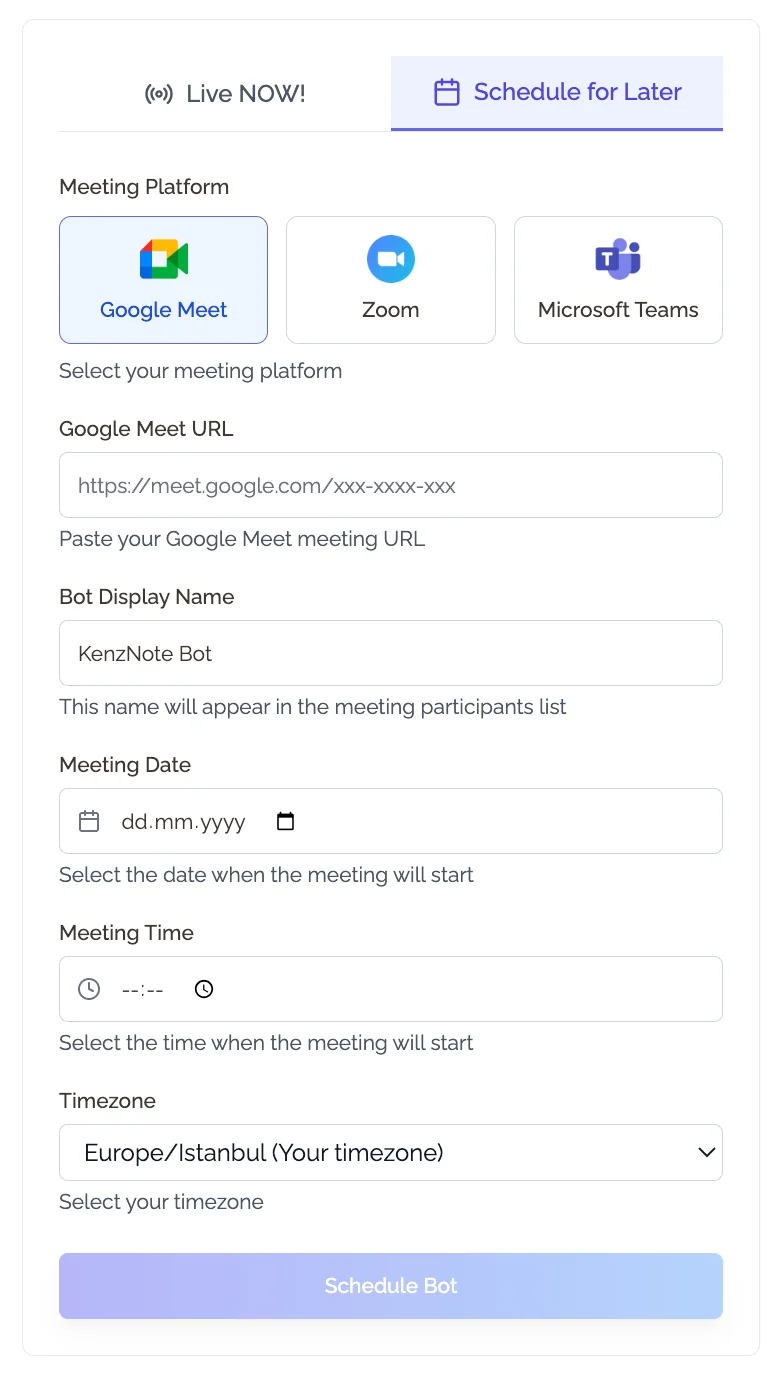
Once logged in:
- Click "Send Bot" from the left sidebar
- Choose "Live NOW!" tab for meetings happening now, or "Schedule for Later" for future meetings
- Select Google Meet as your meeting platform
- Paste your Google Meet link in the URL field (example:
https://meet.google.com/abc-defg-hij) - Customize the bot display name if needed (default: "KenzNote Bot")
- Click "Send Bot" or "Schedule Bot"
That's it! The KenzNote bot will join your Google Meet meeting and start recording.
Step 3: The Bot Joins Your Meeting
When the bot enters your Google Meet:
- It appears as a participant named "KenzNote Bot" (or your custom name)
- It has its camera off and microphone muted
- Participants will see it in the participants list
- The bot automatically starts recording audio
Pro Tip: Let your meeting participants know in advance that you'll be using an AI transcription service. Most meeting platforms require consent before recording.
Step 4: Review Your Transcript and Summary
After your meeting ends, KenzNote processes the recording (usually takes 2-5 minutes for a 30-minute meeting). You'll receive:
📊 Fact Box: Processing Speed
- 2-5 minutes average processing time for 30-60 minute meetings
- Real-time transcription during live meetings (see words as spoken)
- 95-98% accuracy with clear audio quality
- Processing happens in the cloud; no local resources needed
- Transcripts delivered via email and dashboard instantly
Based on KenzNote performance metrics 2026
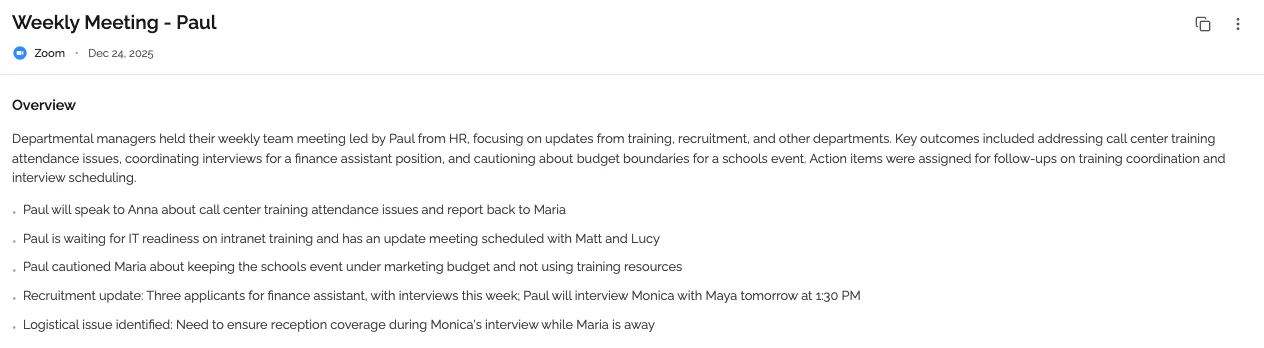
Complete Transcript with Speaker Identification
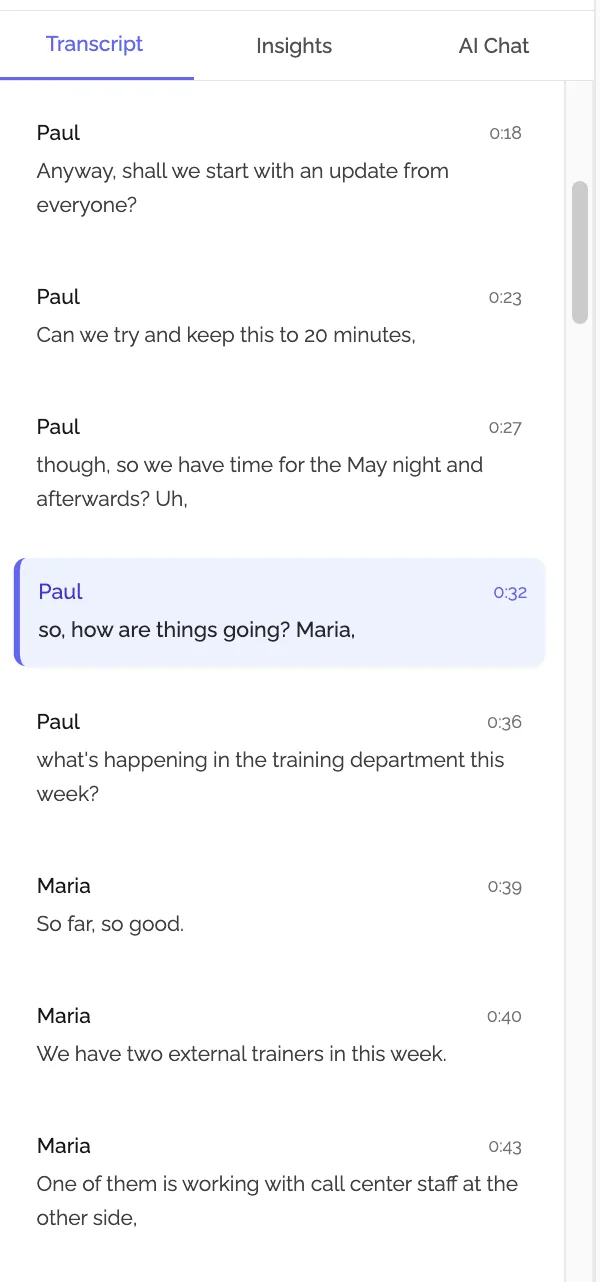
Your transcript includes:
- Speaker names - Each person identified separately
- Timestamps - Know exactly when something was said (0:18, 0:23, etc.)
- Full searchability - Find any word or phrase instantly
- 95%+ accuracy - Industry-leading transcription quality
📊 Fact Box: Transcription Accuracy Comparison
- KenzNote AI: 95-98% accuracy
- Google Meet built-in: 85-90% accuracy (Workspace only)
- Human professional transcriber: 98-99% accuracy
- Human real-time note-taker: 40-60% capture rate
- Cost comparison: AI $0.99 vs Human $50-100 per hour
Sources: Industry benchmarks, Rev.com Transcription Report
AI-Generated Meeting Summary
KenzNote automatically creates:
- Overview - High-level summary of main discussion points
- Key topics covered - What was discussed and why it matters
- Important decisions - What was decided during the meeting
- Participant insights - Who contributed and what they said
Automatic Action Items Extraction
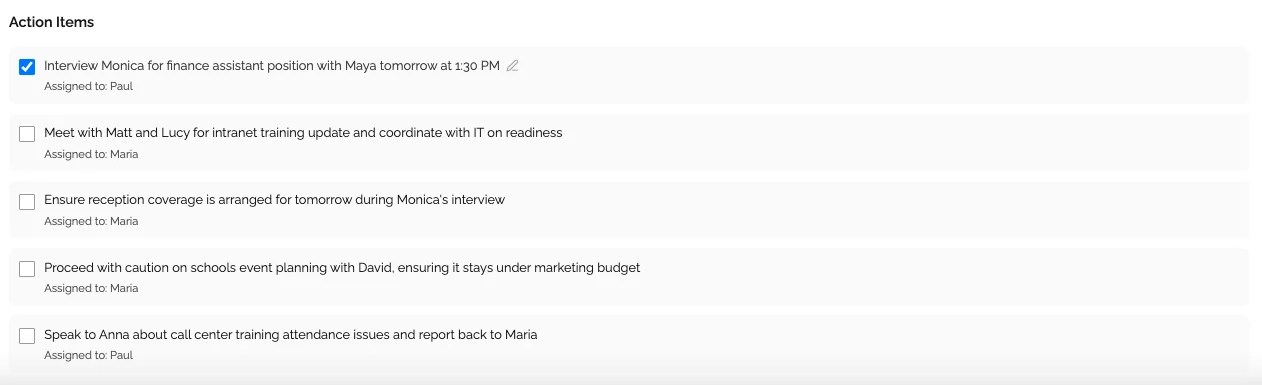
KenzNote identifies action items from your conversation, including:
- Task descriptions
- Who is assigned to each task
- Mentioned deadlines or due dates
- Checkboxes to track completion
This saves hours of manually reviewing meetings to figure out who needs to do what.
📊 Fact Box: Action Item Extraction Impact
- 70% of meeting action items go undocumented without AI extraction
- Teams using AI see 2.5x higher completion rates for tasks
- Average meeting generates 5-8 action items
- Manual extraction takes 15-20 minutes per hour of meeting
- AI extraction happens instantly during processing
Sources: Asana Work Management Report, Forrester Research
Step 5: Share and Export
Once processing is complete, you can:
- Share the transcript with team members (coming soon)
- Export to PDF for documentation
- Download as text or markdown
- Search across all your meeting transcripts
Method 2: Schedule Bot for Future Meetings
 Schedule a bot in advance: Set it and forget it for recurring or future meetings.
Need to transcribe a meeting that hasn't started yet? Schedule the bot in advance.
- Click "Send Bot" from sidebar
- Select "Schedule for Later" tab
- Choose Google Meet as platform
- Enter your Google Meet URL
- Set the meeting date and time
- Select your timezone
- Click "Schedule Bot"
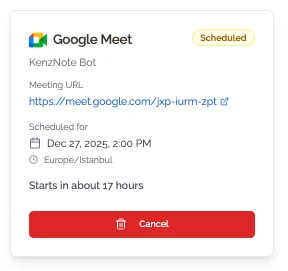
The bot will automatically join at the scheduled time. You'll see a confirmation card showing:
- Meeting platform and URL
- Scheduled date and time
- Time until the meeting starts
- Option to cancel if plans change
Method 3: Upload Pre-Recorded Google Meet Files
 Upload past recordings: Drag and drop any Google Meet recording file for instant transcription.
Already have a Google Meet recording saved on your computer? Upload it directly to KenzNote for transcription.
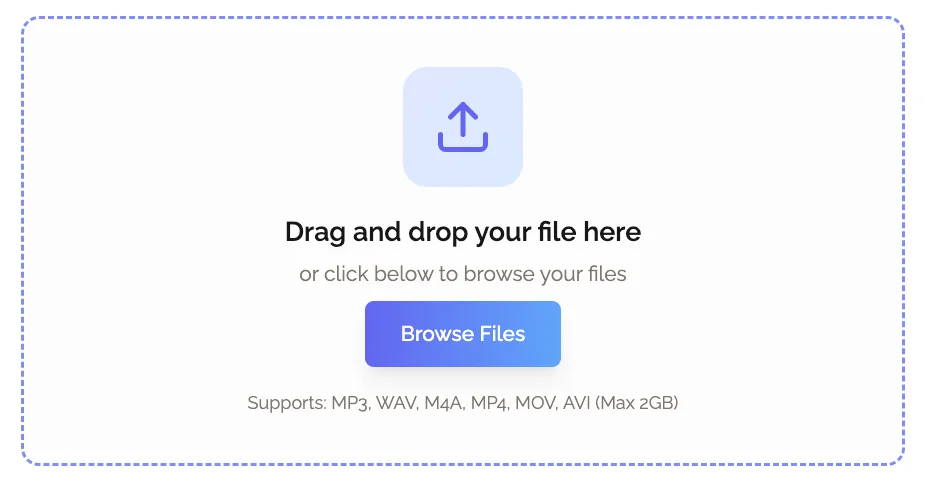
How to Upload:
- Click "Upload Recording" from the sidebar
- Drag and drop your file or click "Browse Files"
- Wait for processing (2-5 minutes for most meetings)
- Get your transcript, summary, and action items
Supported File Formats:
KenzNote supports all common audio and video formats:
- MP3 - Best for audio-only recordings (up to 500 MB)
- MP4 - Best for video recordings (up to 2 GB)
- WAV - High-quality audio (up to 1 GB)
- M4A - iOS and Mac recordings (up to 500 MB)
- MOV - Apple video format (up to 2 GB)
- AVI - Windows video format (up to 2 GB)
📊 Fact Box: File Format Support
- 6+ formats supported: MP3, MP4, WAV, M4A, MOV, AVI
- Max file size: Up to 2 GB for video files
- Processing speed: Same as live meetings (2-5 min for 60 min file)
- Quality preserved: Original audio/video quality maintained
- Batch upload: Process multiple files simultaneously
KenzNote supports the most common recording formats from all platforms
This method is perfect if:
- You recorded the meeting using Google Meet's native recording feature
- Someone else recorded the meeting and sent you the file
- You want to transcribe old meeting recordings
- You don't want to add a bot to live meetings
Why Choose KenzNote for Google Meet Transcription?
 Feature comparison: Why KenzNote stands out for Google Meet transcription.
1. No Calendar Integration Required
Unlike other tools that force you to connect your entire Google Calendar, KenzNote lets you choose exactly which meetings to transcribe. Simply paste the meeting link when you need it.
This means:
- Better privacy - You control what gets recorded
- Selective transcription - Only transcribe important meetings
- No recurring subscriptions - Pay only for what you use (with pay-per-meeting option)
2. Industry-Leading Transcription Accuracy
KenzNote achieves 95%+ transcription accuracy thanks to:
- Advanced AI models trained on meeting conversations
- Automatic speaker identification
- Context-aware processing for better accuracy
- Support for multiple accents and speaking styles
3. Intelligent AI Analysis
Beyond basic transcription, KenzNote provides:
- Automatic summaries - Get the main points in seconds
- Action item extraction - Know who needs to do what
- Key topic identification - Understand what was discussed
- Meeting insights - Speaker analytics and participation metrics
4. Privacy-First Approach
Your meeting data belongs to you:
- Never used for AI training - Your conversations stay private
- Contractual guarantees - Service providers prohibited from using your data
- GDPR compliant - Full data protection compliance
- Encrypted storage - End-to-end encryption in transit and at rest
- You control access - Decide who can view your transcripts
📊 Fact Box: Privacy & Security
- Zero data training: Your meeting content never trains AI models
- AES-256 encryption: Bank-level encryption in transit and at rest
- GDPR compliant: Full EU data protection compliance
- SOC 2 certified: Enterprise-grade security standards
- You own your data: Delete recordings anytime, export all data
Security certifications: SOC 2 Type II, GDPR, CCPA compliant
5. Flexible Pricing for Every Need
Choose the pricing model that works for you:
- Free Plan - 2 meetings free transcription to try the service
- Unlimited Plan - $29.99/month for unlimited meetings (best for power users)
- Pay Per Meeting - $0.99 per meeting with no recurring charges
- Pay Per Hour - $0.99 per hour of transcription for variable-length meetings
No vendor lock-in. Credits never expire. Cancel anytime.
📊 Fact Box: Pricing Comparison
- KenzNote pay-per-use: $0.99/meeting (occasional users)
- KenzNote unlimited: $29.99/month (power users)
- Otter.ai: $20/user/month (no pay-per-use option)
- Fireflies.ai: $19/seat/month (limited free tier)
- Human transcription: $1-2.50/minute = $60-150/hour
- Break-even point: 30 meetings/month
Choose pay-per-use if you have < 30 meetings/month
Tips for Better Google Meet Transcriptions
 Best practices checklist: Maximize transcription accuracy with these proven tips.
Before the Meeting
- Test your audio quality - Use a good microphone for clearer transcription
- Inform participants - Let people know the meeting will be transcribed
- Get consent - Ensure all participants agree to recording (required by law in many regions)
During the Meeting
- Speak clearly - Moderate pace improves accuracy
- Minimize background noise - Close windows, mute notifications
- Identify speakers - Say names when assigning tasks ("John, can you handle the design?")
- State action items explicitly - "Action item: Lina will send the report by Friday"
- Avoid talking over each other - Better for both conversation and transcription
📊 Fact Box: Audio Quality Impact on Accuracy
- Clear audio with good mic: 95-98% accuracy
- Laptop built-in mic: 90-94% accuracy
- Background noise present: 85-90% accuracy
- Multiple people talking: 80-85% accuracy
- Heavy accents + noise: 75-80% accuracy
Invest in a decent USB microphone for best results
After the Meeting
- Review the transcript - Check for any errors or unclear sections
- Edit if needed - Add context or clarify ambiguous points
- Share quickly - Send transcripts to participants within 24 hours
- Follow up on action items - Use the extracted tasks to track accountability
Common Questions About Google Meet Transcription
Does Google Meet have built-in transcription?
Yes, but only for Google Workspace customers, and it's limited:
- Only available with specific Workspace plans
- Basic transcription without AI summaries
- No action item extraction
- Transcripts attached to Google Docs (not searchable across meetings)
- Only works during the meeting (can't transcribe recordings later)
KenzNote works for everyone, regardless of Google Workspace plan, and provides advanced AI features.
📊 Fact Box: Google Meet Built-in vs KenzNote
- Google Meet built-in: Workspace Business Plus/Enterprise only ($18-23/user/month)
- Accuracy: 85-90% (Google) vs 95-98% (KenzNote)
- AI summaries: ❌ Google vs ✅ KenzNote
- Action items: ❌ Google vs ✅ KenzNote
- Works for free Google accounts: ❌ Google vs ✅ KenzNote
- Searchable archive: ❌ Google vs ✅ KenzNote
KenzNote provides more features at lower cost for all users
Is it legal to transcribe Google Meet meetings?
Yes, but you must:
- Get consent - Inform all participants before recording
- Follow local laws - Some regions require explicit consent from all parties
- Respect privacy - Don't record sensitive personal information without authorization
- Be transparent - Let people know how recordings will be used and stored
KenzNote helps with compliance by clearly identifying the bot in meetings and logging consent.
📊 Fact Box: Recording Consent Laws
- One-party consent states: 38 US states (only one person needs to consent)
- Two-party consent states: 12 US states (ALL parties must consent)
- GDPR (EU): Explicit consent required from all participants
- Penalties: Up to $10,000 per violation + legal fees
- Best practice: Always notify participants at meeting start
Check your local jurisdiction's recording laws before transcribing
How accurate is the transcription?
KenzNote achieves 95%+ accuracy with clear audio. Accuracy improves with:
- Good audio quality (use headsets or external microphones)
- Minimal background noise
- Clear speech at moderate pace
- Proper English (or supported language)
For comparison, human transcribers typically achieve 98-99% accuracy but cost 10-20x more and take hours or days to deliver.
Can I transcribe Google Meet in other languages?
Yes! KenzNote supports multiple languages including:
- English (US, UK, Australian, Indian accents)
- Spanish
- French
- German
- Portuguese
- And many more
The AI automatically detects the language being spoken.
📊 Fact Box: Multi-Language Support
- 97+ languages supported via OpenAI Whisper
- Automatic language detection - no manual selection needed
- Top accuracy languages: English, Spanish, French, German, Mandarin
- Accent handling: UK, US, Australian, Indian, and more
- Mixed language meetings: Can handle code-switching
Language detection happens automatically during processing
How long does transcription processing take?
Processing time depends on meeting length:
| Meeting Duration | Processing Time |
|---|---|
| Up to 60 minutes | 1-3 minutes |
| 1-2 hours | 3-5 minutes |
| Over 2 hours | 5-7 minutes |
You'll receive an email notification when your transcript is ready.
What happens to my meeting recordings?
With KenzNote:
- Recordings are stored securely with encryption
- You control who can access them
- You can delete recordings anytime
- Data is never used to train AI models
- You can export your data at any time
Can I edit the transcript?
Yes! You can edit both the transcript and the AI-generated summary to:
- Fix any transcription errors
- Add context or clarification
- Remove sensitive information
- Improve formatting
How does speaker identification work?
KenzNote uses AI speaker diarization to identify who said what. The system analyzes voice patterns, tone, and speech characteristics to separate different speakers. Initially, speakers are labeled as "Speaker 1," "Speaker 2," etc., then you can assign names manually. Accuracy improves when speakers don't talk over each other and audio quality is good.
Can I transcribe Google Meet breakout rooms?
Currently, KenzNote transcribes the main meeting room. Breakout rooms are separate meetings with different links, so you'd need to send separate bots to each breakout room if you want to transcribe them. Most users transcribe only the main session where key decisions happen.
Does transcription work on mobile Google Meet?
Yes! The KenzNote bot joins Google Meet regardless of device. You can start a meeting on mobile, desktop, or tablet; the transcription works the same way. However, for scheduling or uploading files, you'll want to use the KenzNote dashboard on desktop or mobile web browser.
Can I share transcripts with people who weren't in the meeting?
Absolutely. You can share transcripts via link, export as PDF, or email directly from KenzNote. This is perfect for team members who couldn't attend, stakeholders needing updates, or for keeping distributed teams aligned across time zones.
What happens if my internet connection drops during transcription?
The KenzNote bot continues recording as long as it stays connected to the Google Meet. If your personal connection drops but the meeting continues, the bot keeps transcribing. You'll still get the full transcript. The bot only stops when the meeting host ends the session.
Can I transcribe recurring Google Meet meetings automatically?
Yes! Schedule the bot once with recurrence settings (daily standup, weekly team meeting, etc.), and it will automatically join each occurrence. You'll get transcripts for every instance without manual scheduling each time.
Does KenzNote work with Google Meet on Chromebook?
Yes. KenzNote is platform-independent; it works with Google Meet regardless of your device (Windows, Mac, Linux, Chromebook, tablets, phones). The bot joins via the meeting link, not through your device.
Can I search across all my meeting transcripts?
Yes! KenzNote provides a searchable archive of all your meetings. Search by keyword, date, participant, or topic to instantly find past discussions, decisions, or commitments. This builds institutional knowledge that doesn't disappear when team members leave.
How many meetings can I transcribe simultaneously?
With KenzNote's pay-per-use or unlimited plan, you can transcribe multiple meetings happening at the same time. Each meeting gets its own bot instance, so there's no conflict. Ideal for managers overseeing multiple team meetings or organizations with concurrent sessions.
Real-World Use Cases
Sales Teams
"We use KenzNote for every client call. It captures requirements we might have missed and helps us prepare better proposals. The action item extraction is a game-changer."
- Sales Manager, Tech Startup
Remote Teams
"With team members across 5 time zones, not everyone can attend every meeting. KenzNote transcripts keep everyone aligned without forcing people to watch hour-long recordings."
- Engineering Lead, Remote Company
Project Managers
"I manage 4 projects simultaneously with stakeholder meetings for each. KenzNote helps me track commitments across all meetings without drowning in notes."
- Senior Project Manager, Consulting Firm
Consultants
"Client meetings are full of important details about requirements and scope. KenzNote transcripts protect us from scope creep and provide documentation for deliverables."
- Independent Consultant
Get Started with Google Meet Transcription Today
Ready to stop missing important meeting details?
- Create your free account at kenznote.com
- Transcribe your first meeting free - No credit card required
- Experience AI-powered meeting intelligence - Summaries, action items, and searchable transcripts
Transform your Google Meet meetings from forgotten conversations into organized, actionable intelligence.
Need Help?
- Documentation: Visit our Help Center at [email protected]
- Email Support: [email protected]
- Live Chat: Available in the KenzNote app
Have questions about transcribing Google Meet meetings? We're here to help!

About KenzNote Team
The KenzNote team is dedicated to helping teams capture better meeting insights and transform how they collaborate. With backgrounds in AI, product design, and enterprise software, we're building the future of meeting productivity.
Ready to transform your meetings?
KenzNote automatically captures meeting insights, extracts action items, and generates summaries so you can focus on the conversation instead of taking notes.
Try KenzNote Free