
Quick Answer
KenzNote transforms meeting documentation in three simple steps: paste your meeting link, let the AI bot join automatically, and receive complete transcripts with action items within minutes. Unlike competitors requiring calendar integration, KenzNote works immediately; just copy your Google Meet, Zoom, or Teams link and you're ready.
The AI achieves 95%+ transcription accuracy while automatically extracting action items, key decisions, and organizing topics. Processing typically completes 2-5 minutes after meetings end. You can also upload pre-recorded meetings for the same comprehensive analysis without sending a bot at all.
Key Takeaways
- No calendar integration required: Simply paste meeting links; no permissions or complex setup needed
- Three platforms supported: Works seamlessly with Google Meet, Zoom, and Microsoft Teams meetings
- Two scheduling options available: Send bot immediately for live meetings or schedule for future calls
- Processing completes fast: Get transcripts and summaries within 2-5 minutes after meetings end
- AI extracts action items: Never miss tasks, owners, or deadlines discussed during conversations
- Upload recordings works too: Analyze pre-recorded meetings by uploading MP3, MP4, WAV, or M4A files
- Search everything instantly: Full-text search across all meeting transcripts finds details in seconds
- Shareable summaries ready: Export PDFs, Markdown, or text for easy team distribution and archiving
Getting Started with KenzNote: A Complete Guide
Welcome to KenzNote! This guide will walk you through everything you need to know to start capturing better meeting notes with AI-powered assistance.
Step 1: Create Your Account
Getting started is simple:
- Visit kenznote.com/signup
- Enter your email and create a password
- Or sign up with Google or Microsoft account
- Complete your profile

Pro tip: Use your work email to make it easier to collaborate with your team later.
Step 2: Set Up Your First Meeting
Once logged in, you can create your first meeting:
Here is the advantage of KenzNote: you don't have to integrate your calendar and share it with any tool, you can simply schedule the meeting you choose and you want.
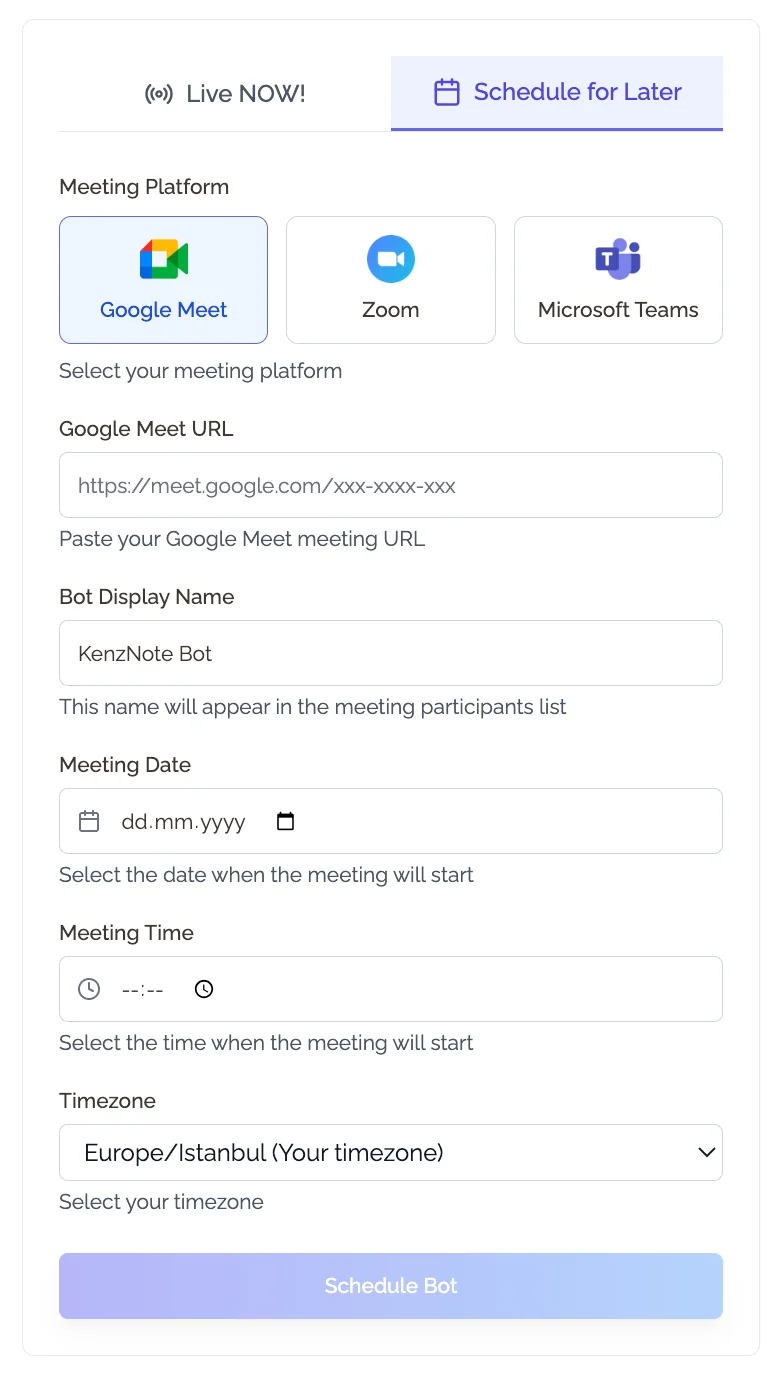
- Click "Send Bot" from your sidebar
- You can choose between Live NOW! or schedule for later
- Add meeting details:
- Meeting Platform: Choose between Google Meet, Zoom, or Microsoft Teams
- Meeting Link: Paste your meeting link
- Date & Time: When the meeting will occur (If not Live or Now meeting)
- Bot Name: If you want to rename your Notetaker Bot
Step 3: Review Your AI-Generated Summary
Once processing is complete, you'll see:
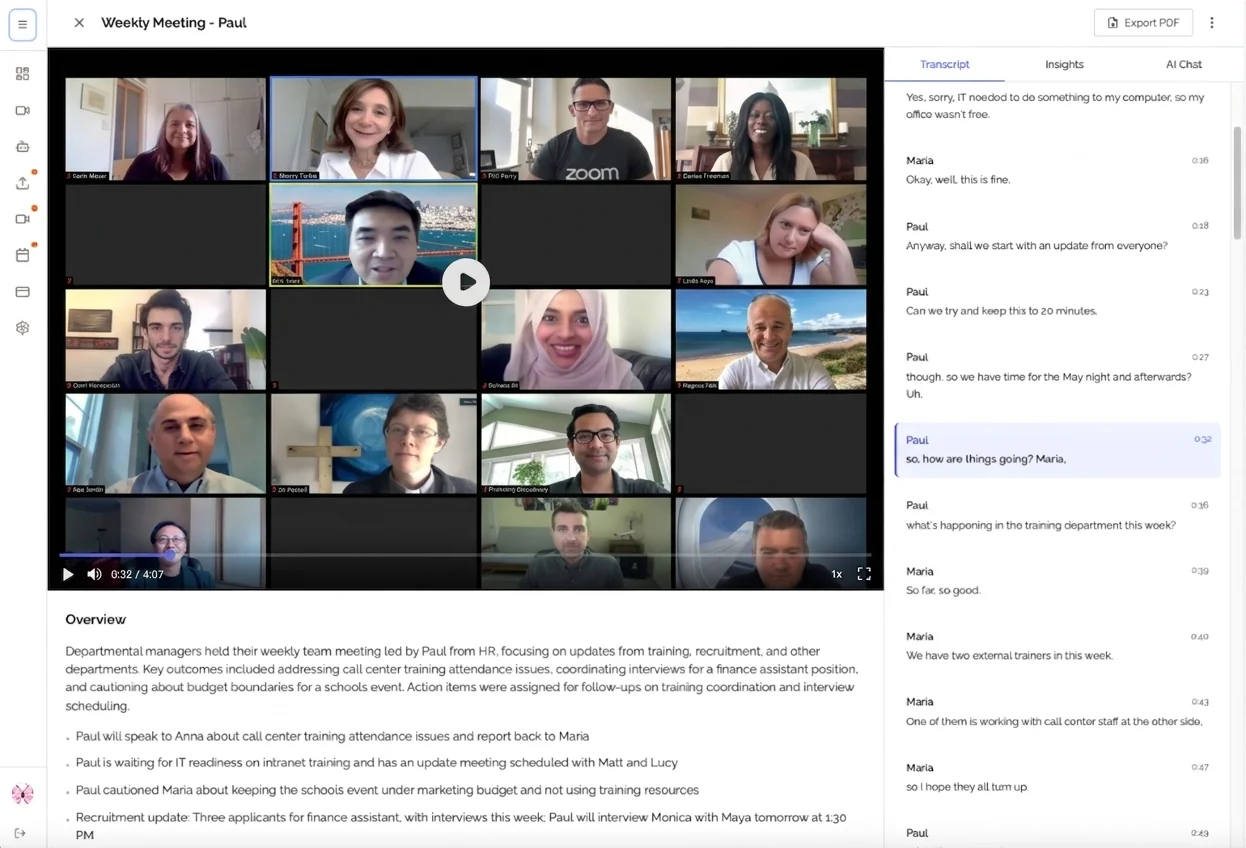
Meeting Overview
A high-level summary of what was discussed, including:
- Main topics covered
- Key participants and their contributions
- Meeting duration and attendance
Action Items
A clear list of tasks with:
- Task description
- Who is responsible
- Due dates
- Priority level
Key Decisions
Important decisions made during the meeting, including:
- What was decided
- Why it was decided
- Who made the decision
- Any dissenting opinions
Transcript
The complete, searchable transcript of your meeting with:
- Timestamps
- Speaker identification
- Search and highlight functionality
Step 4: Share and Collaborate
Make your meeting notes useful for everyone:

Share with Your Team (Coming Soon)
- Click "Share" on any meeting
- Enter team member email addresses
- Set permission levels (view only or edit)
Export Options
Download your meeting notes in various formats:
- PDF: For sharing or archiving
- Markdown: For your documentation system
- Text: For copy-pasting into other tools
Step 5: Organize Your Meetings
Keep everything organized with:
Search and Filter
Find any meeting instantly by:
- Meeting title
- Participant names
- Date range
- Tags or categories
- Content within transcripts
Other Options to Transcribe and Analyze Your Meeting Without Sending the Bot to Your Meeting:
KenzNote supports multiple ways to capture your meetings:
Option 1: Upload Audio/Video Files
If you have your meeting already saved on your machine and want to get the analysis and transcription, you can follow the next steps:
- Click "Upload Recording"
- Select your audio or video file (MP3, MP4, WAV, M4A supported)
- Wait for processing (usually 2-5 minutes)
Supported File Formats
| Format | Max Size | Quality | Recommended |
|---|---|---|---|
| MP3 | 500 MB | Good | ✅ Best for audio-only |
| MP4 | 2 GB | Excellent | ✅ Best for video |
| WAV | 1 GB | Excellent | Good for short meetings |
| M4A | 500 MB | Very Good | iOS recordings |
| WEBM | 1 GB | Very Good | Browser recordings |
Option 2: Real-Time Recording (Coming Soon)
Record directly within KenzNote during your meeting.
Option 3: Integration with Meeting Platforms (Coming Soon)
Connect with Zoom, Google Meet, or Microsoft Teams for automatic recording.
Best Practices for Success
Before the Meeting
- Create the meeting in KenzNote with clear details
- Invite participants so they know notes will be shared
- Test your recording equipment to ensure good audio quality
During the Meeting
- Start recording at the beginning
- Speak clearly for better transcription accuracy
- State action items explicitly to help AI extraction
- Mention names when assigning tasks
After the Meeting
- Review the AI summary for accuracy
- Edit if needed to add context or clarify points
- Share with participants within 24 hours
- Follow up on action items using the task tracking features
Tips for Better Transcriptions
Audio Quality Matters
- Use a good quality microphone
- Minimize background noise
- Speak at a moderate pace
- Avoid talking over each other
Clear Communication Helps AI
- State names when assigning tasks: "John, can you handle the design?"
- Be explicit about deadlines: "We need this done by Friday"
- Summarize decisions clearly: "So we've decided to go with option B"
Common Questions
How accurate is the transcription?
Our AI achieves 95%+ accuracy with clear audio. Accuracy improves with:
- Good audio quality
- Clear speech
- Minimal background noise
- Proper speaker identification
How long does processing take?
Processing times vary based on meeting length:
| Meeting Duration | Processing Time | Transcript Ready |
|---|---|---|
| Up to 60 min | 1-3 minutes | ⚡ Fast |
| 1-2 hours | 3-5 minutes | ⏱️ Moderate |
| Over 2 hours | 5-7 minutes | ⏱️ Moderate |
Can I edit the transcript?
Yes! You can edit both the transcript and the AI-generated summary to correct any errors or add additional context.
Is my data secure?
Absolutely. We use:
- End-to-end encryption
- Secure cloud infrastructure
- GDPR compliance
- No data sharing with third parties
Getting Help
Need assistance?
- Documentation: Contact [email protected] for help
- Email Support: [email protected]
- Chat: Click the chat icon in the bottom right
Ready to transform your meetings? Create your first meeting now.
Feedback Welcome
We're constantly improving KenzNote based on user feedback. Let us know what features you'd like to see next! Contact [email protected] for feedback

About KenzNote Team
The KenzNote team is dedicated to helping teams capture better meeting insights and transform how they collaborate. With backgrounds in AI, product design, and enterprise software, we're building the future of meeting productivity.
Ready to transform your meetings?
KenzNote automatically captures meeting insights, extracts action items, and generates summaries so you can focus on the conversation instead of taking notes.
Try KenzNote Free