
Quick Answer
For freelancers and small teams running fewer than 10 to 15 meetings per month, a subscription-based AI meeting assistant makes no financial sense. You need pay-as-you-go pricing, a no-bot workflow that does not alarm clients, and a tool that handles client privacy without requiring calendar access to your entire schedule. KenzNote, at $0.99 per meeting with an upload-based workflow, is the clearest fit for this use case.
Key Takeaways
- Monthly subscriptions for AI meeting tools cost $15 to $40 per user, which only makes sense if you have more than 15 to 40 heavily documented meetings each month
- Most freelancers and small teams do not need a bot joining their calls; an upload-based workflow is more private, less disruptive to clients, and functionally equivalent
- Forced calendar integration exposes your full client roster to a third-party vendor, a privacy risk many freelancers have not considered
- KenzNote's $0.99 per meeting pricing means a freelancer doing 8 client calls per month pays $7.92, not $29.99
- Client perception matters: an unfamiliar bot appearing in a discovery call or coaching session can damage trust before work begins
- Tools like tl;dv and Fireflies are excellent for high-volume enterprise teams but are overbuilt and overpriced for freelancers
- The right AI meeting tool for a freelancer is the one you will actually use consistently because it costs nothing when you do not need it
Table of Contents
- Why Most AI Meeting Assistants Are Built for the Wrong Buyer
- What Freelancers and Small Teams Actually Need
- The Problem With AI Meeting Bots and Client Calls
- Comparing the Top Options for Light Users
- Pricing Reality Check: Monthly Subscription vs. Pay-Per-Meeting
- Tool Comparison Table
- The Best Choice by User Type
- How to Get Started Without Disrupting Clients
- Frequently Asked Questions
- Related Resources
Why Most AI Meeting Assistants Are Built for the Wrong Buyer
Open any comparison article for AI meeting assistants and you will find the same buyer assumed throughout: a sales team with a CRM, a manager running daily standups, an enterprise with a compliance department. The features highlighted are pipeline syncing, coaching dashboards, call scoring, and bulk analytics.
That is a useful product for 50-person revenue teams. It is not useful for:
- A freelance UX designer doing 6 client calls a month
- A solo business coach running 90-minute sessions
- A 3-person startup taking investor meetings
- A small agency with 5 staff and 20 client calls per month
- A consultant running discovery workshops twice a week
These users do not need a CRM sync. They need a reliable transcript, a clean summary, and action items. They need it to cost almost nothing when they are between projects. And they need it to not alarm their clients by showing up uninvited on a call.
According to McKinsey, the share of Americans doing independent work has grown significantly in recent years, with over 36% of the employed population doing freelance work in some capacity. Yet almost no AI meeting tooling is designed for this group.
 Most AI meeting tools are designed for enterprise sales teams. Freelancers and small teams have fundamentally different requirements.
What Freelancers and Small Teams Actually Need
Before comparing tools, be precise about the requirements:
Pay-as-you-go or very low cost. If you have 6 client calls this month and 1 next month, a flat monthly subscription punishes you for low usage. You need to pay for what you use.
No mandatory calendar integration. Calendar integration means granting a third-party vendor read access to every event on your calendar, including personal appointments, client names, and meeting titles. For freelancers managing sensitive client relationships, this is a real privacy and confidentiality concern.
No bot that joins your calls. A bot appearing in a client's Google Meet or Zoom call is an uninvited participant. Clients see it. They do not know who controls it or what it does with their words. This is a trust issue, particularly in coaching, consulting, legal, healthcare, and any sensitive advisory context.
Simple, fast workflow. You do not have a dedicated operations person. The tool has to work without setup, training, or maintenance.
Clean output you can use immediately. Transcript, summary, action items, and the ability to search or ask questions about the content.
Client privacy assurance. You need to be able to tell clients their conversations are private. That requires knowing your tool does not train AI on your data and does not share it with undisclosed third parties. See Does Your AI Meeting Assistant Train on Your Data? for what to look for.
The Problem With AI Meeting Bots and Client Calls
Most AI meeting assistants work by sending a bot to join your video call as a participant. The bot records audio, uploads it to the vendor's servers, and processes it.
This creates several problems for freelancers:
Client awareness and consent. The bot appears on the participant list. Clients see "Notetaker" or "Fireflies.ai" in the meeting. Many clients are unfamiliar with these tools and may feel uncomfortable, particularly in early-stage calls where trust has not been established.
You cannot retroactively add a bot. If you forgot to configure the bot before a call, or if you decide mid-meeting to capture the transcript, most bot-based tools cannot accommodate this. Upload-based tools let you process any recording after the fact.
Calendar dependency. Most bots auto-join based on your calendar. This means the vendor accesses your full calendar to know which meetings to attend. For freelancers with a mix of personal, client, and partner meetings, this is a larger access grant than it might appear.
Client organization IT policies. Some client organizations block third-party bots from joining their hosted meetings. An upload-based workflow sidesteps this entirely.
For a detailed comparison of bot-based vs. upload-based tools, see Bot-Free AI Meeting Recorder 2026.
Comparing the Top Options for Light Users
KenzNote
KenzNote is built on an upload-based model. You record your meeting using your platform's native recording (Google Meet, Zoom, Teams all support this), then upload the file to KenzNote for processing. No bot. No calendar access required. Pricing is $0.99 per meeting.
Output includes: full transcript, AI-generated summary, action items, key decisions, and a conversational chat interface to ask questions about the meeting content. Supports Google Meet, Zoom, and Microsoft Teams recordings.
For freelancers and small teams: this is the strongest fit. The cost model scales with your actual usage, not your subscription tier.
tl;dv
tl;dv has a free tier that includes unlimited recordings for Google Meet and Zoom with a bot-based workflow. The free tier is useful for low-volume users, with some limitations on AI summaries and search. Paid plans start around $18 to $20 per user per month.
For freelancers: the free tier is attractive, but it requires calendar integration and uses a bot. You also need to check whether the free tier's data handling meets your privacy requirements. See our tl;dv review for the full picture.
Otter.ai
Otter.ai has a free tier with limited monthly transcription minutes and a bot option. It is widely used and has good transcript accuracy. Paid tiers start around $10 to $17 per month.
For freelancers: the free tier works for very occasional use. Paid tiers become expensive relative to KenzNote's per-meeting pricing if you are a light user with a mix of meeting-heavy and quiet months.
Fireflies.ai
Fireflies is a strong enterprise product with CRM integrations, call scoring, and team collaboration features. Free tier includes limited storage and transcription. Paid tiers start around $10 to $19 per user per month.
For freelancers: significantly overbuilt for individual use. The CRM and analytics features add no value for a solo operator. The free tier has enough restrictions to push most regular users toward a paid plan.
Fathom
Fathom has a genuinely generous free tier for individuals and is well-regarded for transcript quality. It uses a bot-based workflow and requires calendar integration. It is a good choice for freelancers who do most work on Zoom and are comfortable with the bot model.
 Tool selection comes down to your monthly meeting volume and your tolerance for bot-based workflows.
Pricing Reality Check: Monthly Subscription vs. Pay-Per-Meeting
Run the numbers for a freelance consultant doing 8 client calls per month:
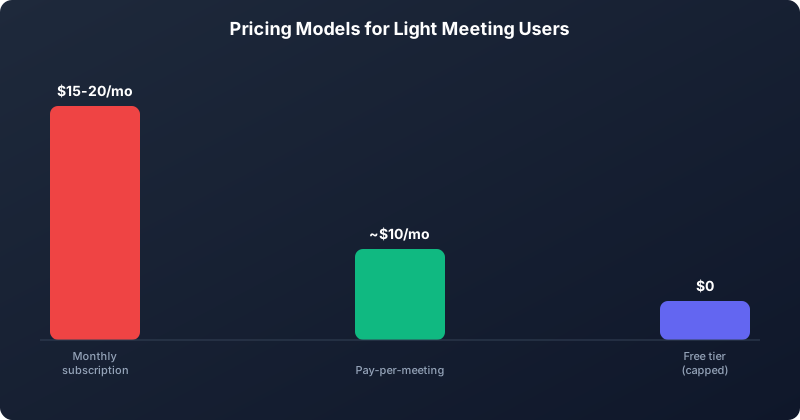 For light users, a subscription almost always costs more than pay-per-meeting pricing.
| Tool | Monthly Cost (8 meetings) | Annual Cost |
|---|---|---|
| KenzNote ($0.99/meeting) | $7.92 | $95.04 |
| Otter.ai Pro ($16.99/month) | $16.99 | $203.88 |
| tl;dv Starter ($18/month) | $18.00 | $216.00 |
| Fireflies Pro ($10/month) | $10.00 | $120.00 |
| Fathom Team ($19/month) | $19.00 | $228.00 |
For 8 meetings per month, KenzNote costs roughly half as much as the next cheapest option, and significantly less than most.
Now consider a slow month: you take a week off, a project ends, you run 2 client calls instead of 8. With KenzNote you pay $1.98. With any subscription tool, you pay the full monthly rate.
Over 12 months with variable usage (some heavy months, some slow), the pay-per-meeting model typically saves a solo freelancer between $150 and $300 annually compared to the cheapest subscription competitors.
Tool Comparison Table
| Feature | KenzNote | tl;dv | Otter.ai | Fireflies | Fathom |
|---|---|---|---|---|---|
| Pay-per-meeting option | Yes ($0.99) | No | No | No | No |
| No-bot workflow | Yes | No | No | No | No |
| Calendar access required | No | Yes | Optional | Yes | Yes |
| Free tier | No | Yes | Yes | Yes | Yes |
| EU data handling / DPA | Yes | Partial | Partial | Partial | Partial |
| No AI training on data | Yes (contractual) | Unclear | Unclear | Unclear | Unclear |
| AI chat with transcript | Yes | Yes | No | Yes | No |
| Google Meet support | Yes | Yes | Yes | Yes | Yes |
| Zoom support | Yes | Yes | Yes | Yes | Yes |
| Teams support | Yes | Partial | Yes | Yes | No |
The Best Choice by User Type
Solo freelancer, fewer than 15 meetings/month: KenzNote. The cost model fits your usage pattern exactly, and the no-bot workflow protects client relationships.
Business coach or therapist with sensitive sessions: KenzNote. Upload-based workflow means you control which recordings are processed, and the no-training guarantee supports client confidentiality. See AI Meeting Notes for Consultants for a detailed workflow.
2 to 5 person startup with daily team meetings: tl;dv free tier for internal meetings, KenzNote for client-facing calls. Split the workflow by context.
Freelancer with 20+ meetings/month: At that volume, a subscription starts to make financial sense. Evaluate tl;dv or Fathom depending on your platform (Zoom vs. Google Meet) and tolerance for the bot model.
Agency with 5 to 10 staff: KenzNote per-meeting pricing still beats subscriptions at moderate volume. Evaluate at 15 to 20 documented meetings per staff member per month.
For the broader market comparison including free options, see Best Free AI Meeting Notetaker 2026.
How to Get Started Without Disrupting Clients
The upload-based workflow removes the friction of asking clients permission for a bot. Here is a clean workflow:
-
Record natively. In Google Meet, click the three-dot menu and select "Record meeting." In Zoom, use the local or cloud recording option. In Teams, use the built-in record button. The meeting platform records in the background.
-
Download the recording after the call. Google Meet recordings go to Drive automatically. Zoom and Teams save locally or to cloud storage depending on your settings.
-
Upload to KenzNote. Drag the file into the KenzNote interface. Processing takes a few minutes depending on recording length.
-
Review the output. Check the summary, confirm action items, and use the chat to ask any specific questions about what was discussed.
-
Share what is useful. Copy the action items into your project management tool, paste the summary into your client update email, or keep the full transcript for your records.
The only client-facing change is that you now have better notes. No new participants on the call. No new consent conversations unless you want to have them.
For the full setup guide, see Getting Started with KenzNote.
Frequently Asked Questions
Is there a free tier for KenzNote?
KenzNote does not offer a free tier. The pricing is $0.99 per meeting, which for low-volume users works out to less than any subscription alternative. If you need a completely free option, tl;dv and Fathom both have free tiers with limitations.
Can I use KenzNote without connecting my Google or Outlook calendar?
Yes. KenzNote does not require calendar access. You upload recordings manually, which means your calendar and meeting schedule remain private.
What happens if a client asks who is recording the meeting?
With an upload-based tool like KenzNote, there is no bot in the meeting. You are recording using your platform's native recording feature, which is visible to all participants. If asked, you can explain that you use AI to generate meeting notes from the recording, and that the data is not used for AI training. This is a much simpler conversation than explaining an unfamiliar bot on the participant list.
Do I need to tell clients I am using AI to process the recording?
Best practice is yes, especially for regulated industries or clients in jurisdictions with strong privacy laws. A simple disclosure in your service agreement or at the start of the call is sufficient for most contexts. For GDPR-covered clients, disclosure is required.
How does KenzNote handle Teams meetings?
You record the Teams meeting using Teams' built-in recording feature, download the file, and upload it to KenzNote. The workflow is identical across Google Meet, Zoom, and Teams.
Is $0.99 per meeting the only cost?
Yes. There are no monthly minimums, no seat fees, and no add-on charges for features. You pay per meeting you process.
Related Resources
References & Citations
- [1]Freelance, side hustles, and gigs: Many more Americans have become independent workersMcKinsey & Company. August 23, 2022https://www.mckinsey.com/featured-insights/sustainable-inclusive-growth/future-of-america/freelance-side-hustles-and-gigs-many-more-americans-have-become-independent-workers
- [2]Stop the Meeting MadnessHarvard Business Review. July 1, 2017https://hbr.org/2017/07/stop-the-meeting-madness
- [3]The New Workplace, U.S. Worker SurveyGallup. October 1, 2022https://www.gallup.com/workplace/397751/perils-productivity-anxiety-workplace-2022.aspx
All external sources have been reviewed for accuracy and relevance. Last verified: September 2026.

About KenzNote Team
The KenzNote team is dedicated to helping teams capture better meeting insights and transform how they collaborate. With backgrounds in AI, product design, and enterprise software, we're building the future of meeting productivity.
Ready to transform your meetings?
KenzNote automatically captures meeting insights, extracts action items, and generates summaries so you can focus on the conversation instead of taking notes.
Try KenzNote Free