
Quick Answer
To transcribe Microsoft Teams meetings, use Teams' built-in transcription (click More actions > Start transcription during a meeting) or an AI assistant like KenzNote for better features and accuracy.
Native Teams transcription is free with Business Standard+ licenses, delivers 85-90% accuracy, and includes speaker identification.
For higher accuracy (95-98%), automatic summaries, action item extraction, and no license requirements, AI tools like KenzNote join your Teams meeting as a bot and provide intelligent analysis for $0.99 per meeting or $29.99/month unlimited.
Key Takeaways
- Teams native transcription is free but requires Microsoft 365 Business Standard or higher ($12.50/user/month minimum)
- Enable transcription during a meeting by clicking More actions (...) > Start transcription - visible to all participants
- 85-90% accuracy with native Teams vs 95-98% with AI assistants like KenzNote or Otter
- AI assistants add summaries and action items that Teams native transcription does not provide
- Transcript available after meeting in meeting chat for Teams native, or the KenzNote dashboard for AI tools
- Privacy controls required - always notify participants that transcription is active per legal requirements
- Use AI tools like KenzNote to transcribe without a Microsoft 365 license and get better features
- Download options available in VTT or DOCX for Teams, and PDF/TXT/Markdown for third-party tools
Table of Contents
- Why Transcribe Microsoft Teams Meetings?
- Method 1: Native Microsoft Teams Transcription
- Method 2: Third-Party AI Assistants for Teams
- Method 3: Transcribe Recorded Teams Meetings After the Fact
- Teams Meeting Transcription Languages
- Teams Meeting Minutes Automation
- Teams Meeting Action Items Tracking
- How to Export Teams Meeting Transcripts
- Common Questions About Teams Transcription
- Real-World Use Cases
- Get Started with Teams Transcription Today
How to Transcribe Microsoft Teams Meetings: Complete Guide 2026
Your team just finished an important Microsoft Teams meeting. Someone asks, "What did we decide about the Q2 budget?"
You pull up your notes. Half of them are illegible. You missed the budget discussion entirely because you were typing furiously about the previous topic. Now you need to schedule another meeting just to clarify what was already agreed.
Sound familiar?
Microsoft Teams has 270+ million monthly active users, and most professionals spend 5-10 hours per week in meetings. If you're not automatically transcribing those meetings, you're losing critical information and wasting hours trying to remember or recreate what was discussed.
Good news: transcribing Microsoft Teams meetings is easy, whether you use Teams' built-in transcription or a third-party AI assistant that provides better accuracy and features.
📊 Fact Box: The Cost of Not Transcribing
- Professionals spend 5-10 hours per week in Microsoft Teams meetings
- Only 25% of meeting content is retained without transcription
- 65% of action items are forgotten within 24 hours without documentation
- Teams using AI transcription see 40% better task completion rates
- 270+ million monthly active users rely on Microsoft Teams globally
Sources: Microsoft Work Trend Index, Asana Work Management Report
Why Transcribe Microsoft Teams Meetings?
Before getting into the how-to, it's worth understanding what you gain from transcription:
- Never miss important details - participants stay focused on the conversation instead of scribbling notes
- Easy reference - search the transcript later to find specific decisions or commitments
- Better accountability - automatically surface action items and who owns them
- Team alignment - share complete meeting records with anyone who couldn't attend
- Compliance and documentation - maintain accurate records for regulated industries
Method 1: Native Microsoft Teams Transcription (Built-In)
Microsoft Teams includes built-in transcription for meetings. It's free with the right license, works automatically, and requires no third-party tools.
How to Enable Transcription in Teams
During a live meeting:
- Join your Teams meeting
- Click More actions (...) in the meeting controls
- Select Start transcription
- Teams displays "Transcription has started" to all participants
- Live captions appear at the bottom of the screen
Before a scheduled meeting:
- Open your Teams meeting invite
- Click Meeting options
- Under Engagement, toggle Allow transcription to On
- Save settings
As a meeting organizer (automatic for all meetings):
- Go to Teams Settings > Meetings
- Enable Auto-transcribe meetings
- All future meetings will transcribe without needing to remember to start it
What Native Teams Transcription Gives You
Teams built-in transcription covers the essentials well:
- Real-time live captions during the meeting
- Speaker identification (shows who said what)
- Timestamp markers so you can jump to specific moments
- Searchable transcript after the meeting ends
- Download as VTT or DOCX
- Transcript linked to the meeting recording
What it does not include is just as important to understand: no AI summaries, no action item extraction, basic accuracy (85-90%), and a hard requirement for Microsoft 365 Business Standard or higher.
📊 Fact Box: Native Teams Transcription Requirements
- Minimum license: Microsoft 365 Business Standard ($12.50/user/month)
- Accuracy: 85-90% with clear audio, 70-80% with poor conditions
- Languages supported: 30+ including English, Spanish, French, German, Chinese, Japanese
- Storage: Transcripts saved to SharePoint or OneDrive alongside recording
- Availability: Not available on free Microsoft Teams accounts
Sources: Microsoft Support Documentation, Microsoft 365 Licensing Guide
How to Access Teams Meeting Transcripts
After the meeting:
- Go to Teams Chat for that meeting
- Click Meeting details at the top
- Select the Recording & transcript tab
- Click View transcript to read in the browser
- Click Download to save as VTT or DOCX
Transcripts are stored alongside recordings in SharePoint or OneDrive. The meeting organizer controls access, and all participants with access can view them in the meeting chat.
Pro Tip: DOCX format is easier to edit and share externally. VTT format works better if you need to sync the transcript with a video recording in an editing tool.
How to Share Teams Meeting Transcripts
For internal sharing, the transcript link is automatically posted in the meeting chat. For external sharing, download as DOCX, review for any confidential content, and email or share via your preferred method. Recordings and transcripts stored in SharePoint can also be shared through folder permissions.
Method 2: Third-Party AI Assistants for Teams (Best Features)
Native Teams transcription is fine for basic needs. But if you want significantly better accuracy, automatic summaries, action item extraction, and cross-platform support, third-party AI assistants are the way to go.
Best AI Note Taker for Teams: Top 3
1. KenzNote (Best for Privacy and Flexibility)
KenzNote joins your Teams meeting as a bot - no calendar access required, no Microsoft 365 tier dependency.
- No calendar integration needed (paste the meeting link when you want to record)
- 95-98% transcription accuracy
- Automatic AI summaries and action item extraction
- Pay-per-meeting pricing ($0.99 per meeting) or unlimited ($29.99/month)
- Works across Teams, Zoom, and Google Meet
- Simple setup: paste link, bot joins, done
Best for: Privacy-conscious teams, flexible usage, selective recording
2. Otter.ai (Best for Enterprise Teams)
Otter integrates deeply with Microsoft 365, syncs your calendar automatically, and has strong enterprise support. It requires calendar integration (a privacy tradeoff), costs $20/user/month, and is less flexible for occasional use.
Best for: Large enterprise Teams deployments already invested in Microsoft 365
3. Fireflies.ai (Best for Sales Teams)
Fireflies connects with Salesforce, HubSpot, and Dynamics 365 and provides conversation analytics useful for sales coaching and deal tracking. It requires calendar access and is arguably overkill if you're not in a sales-heavy environment.
Best for: Sales teams using Teams for customer calls
How to Use KenzNote with Teams Meetings
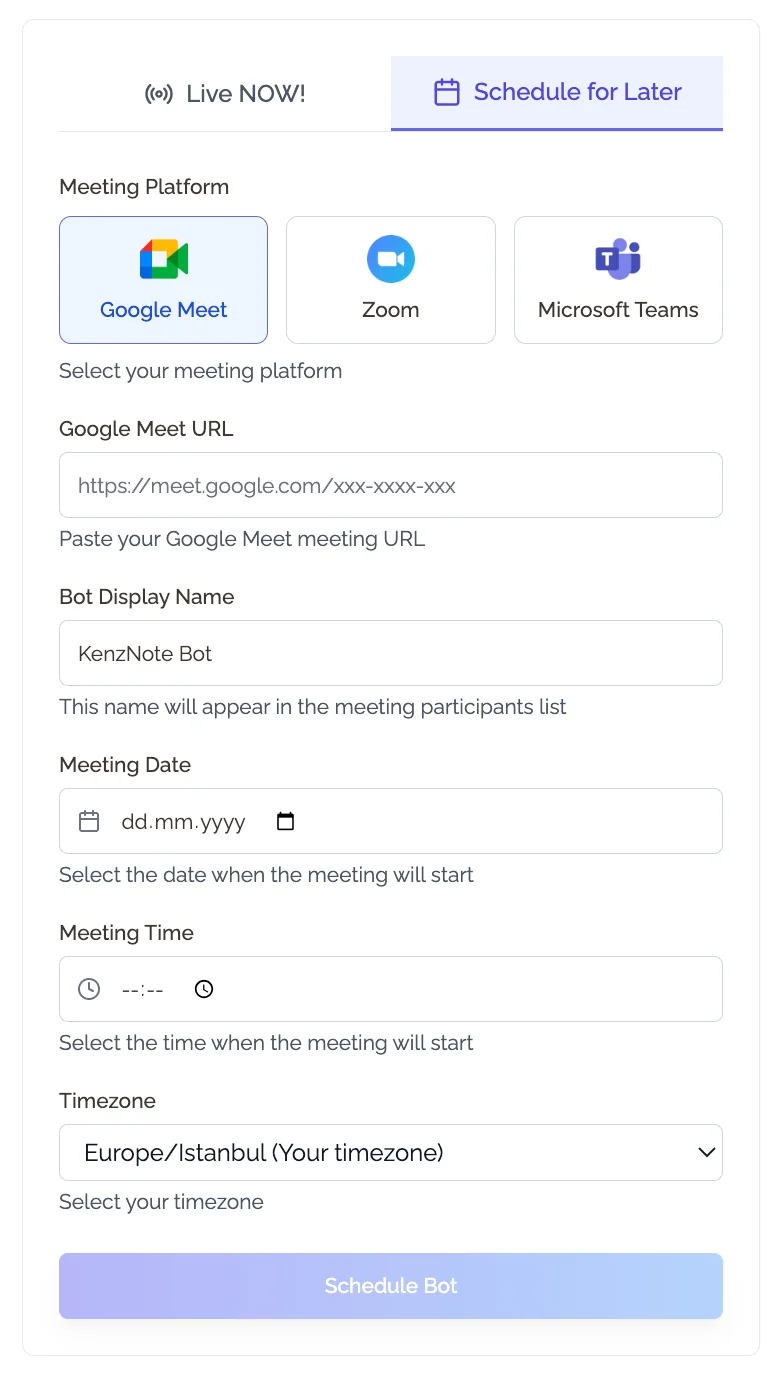
Before or during the meeting:
- Copy your Teams meeting link
- Go to kenznote.com
- Paste the link into the "Send Bot" field
- Click "Send Bot"
During the meeting:
- KenzNote Bot appears in the participant list
- All participants see the recording notification (required for compliance)
- The bot records and transcribes in real-time
After the meeting (2-5 minutes later):
- Receive an email with transcript, summary, and action items
- Access everything via the KenzNote dashboard
- Share with team members or export to PDF, Word, or other tools
📊 Fact Box: AI Assistant vs Native Teams Transcription
- Accuracy: 85-90% (Teams native) vs 95-98% (KenzNote)
- AI summaries: Not included natively; automatic with KenzNote
- Action items: Manual extraction natively; automatic with AI assistants
- License required: Business Standard+ for native; any plan or no M365 for KenzNote
- Processing time: Post-meeting transcript in SharePoint vs 2-5 min email delivery
Sources: Microsoft Support Documentation, KenzNote performance benchmarks 2026
Full Feature Comparison
| Feature | Native Teams | KenzNote | Otter | Fireflies |
|---|---|---|---|---|
| Transcription accuracy | 85-90% | 95-98% | 95-98% | 93-95% |
| AI summaries | No | Yes | Yes | Yes |
| Action item extraction | No | Yes | Yes | Yes |
| Speaker identification | Yes | Yes | Yes | Yes |
| Searchable archive | Limited | Yes | Yes | Yes |
| Calendar integration required | N/A | No | Yes | Yes |
| CRM integration | No | Basic | Yes | Yes |
| Pricing | Free* | $0.99/meeting | $20/user/mo | $10/seat/mo |
| Multi-platform | Teams only | All platforms | Most | Most |
*Requires Microsoft 365 Business Standard or higher ($12.50/user/month minimum)
What AI-Generated Teams Meeting Notes Include
A complete KenzNote output from a Teams meeting includes:
Full transcript with 95-98% accuracy, speaker labels, timestamps, and keyword search.
AI-generated summary covering key topics discussed, decisions made, and next steps identified - a 3-5 paragraph overview you can share immediately.
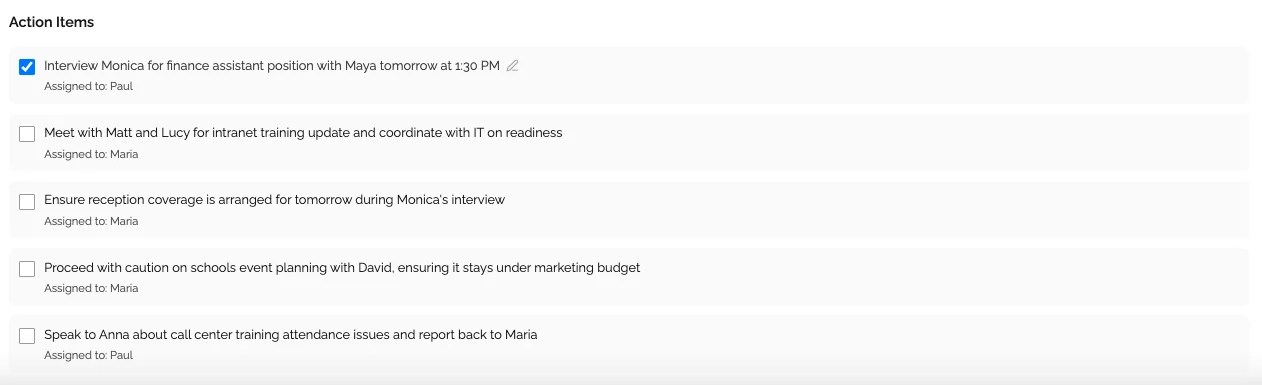
Action items automatically extracted from the conversation, with the owner identified ("Lina agreed to..."), due dates captured ("...by Friday"), and a checkbox list for tracking.
Key topics organized by theme with tags for easy categorization.
Questions and answers captured, with unanswered questions flagged for follow-up.
Method 3: Transcribe Recorded Teams Meetings After the Fact
Already have a Teams recording but no transcript? You have two paths.
Generate a Transcript from an Existing Stream Recording
If your recording is in Microsoft Stream (SharePoint):
- Go to the meeting chat and click the recording link
- Open in Stream (SharePoint)
- Click Generate transcript
- Wait 5-10 minutes for processing
Upload to an AI Assistant for Better Results
For any recording - including old files downloaded to your computer:
- Download the Teams recording as MP4 or audio
- Go to KenzNote and click "Upload Recording"
- Drag and drop your file
- Get a transcript plus AI summary in 2-5 minutes
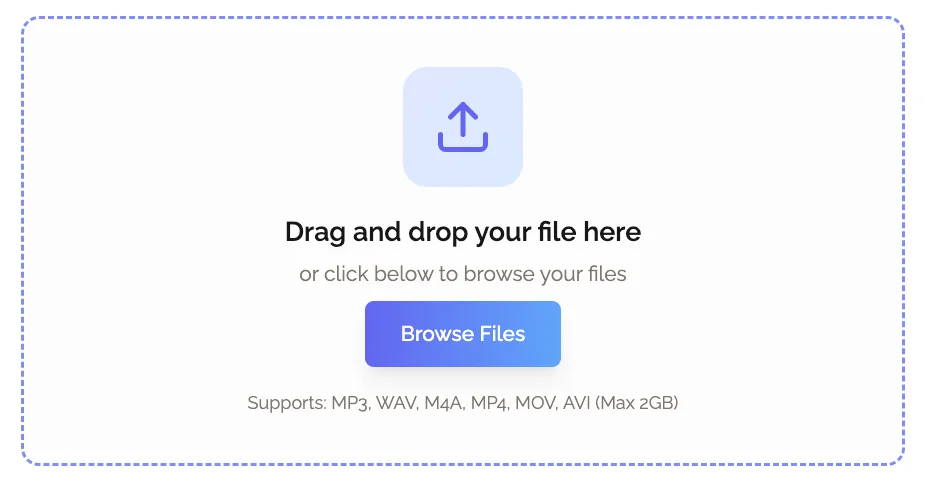
This approach gives you better accuracy (95-98% vs 85-90%), AI summaries and action items, and works with recordings from any era - no Microsoft 365 tier requirements.
📊 Fact Box: Supported Upload Formats
- MP4: Best for Teams video recordings (up to 2 GB)
- MP3: Best for audio-only exports (up to 500 MB)
- WAV: High-quality audio (up to 1 GB)
- M4A: iOS and Mac recordings (up to 500 MB)
- MOV / AVI: Alternative video formats (up to 2 GB)
- Processing time: 2-5 minutes for most 60-minute recordings
KenzNote supports all common recording formats from Microsoft Teams and other platforms
Teams Meeting Transcription Languages
Native Teams transcription supports:
- English (US, UK, Canada, Australia, India)
- Spanish (Spain, Mexico)
- French (France, Canada)
- German, Portuguese (Brazil), Italian
- Chinese (Simplified, Traditional)
- Japanese, and 20+ more
AI assistants typically support:
- KenzNote: 50+ languages with automatic detection
- Otter: English only (as of 2026)
- Fireflies: 60+ languages
For multilingual meetings, native Teams detects the primary language. AI assistants can handle mixed-language conversations but accuracy is best when participants stick to one primary language.
Teams Meeting Minutes Automation
Beyond transcription, you can fully automate meeting minutes creation - getting professionally formatted records without any manual work.
What Automated Meeting Minutes Include
AI-generated minutes pull together everything from the conversation:
- Agenda topics covered (extracted from the discussion itself)
- Attendee list from the participant roster
- Key decisions made with context
- Action items assigned, with owners and deadlines
- Next meeting scheduled (if it was discussed)
- Professional formatting ready to share
Best Approach: KenzNote Plus Microsoft Loop
Using KenzNote for automatic transcription:
- Transcribe with KenzNote
- AI automatically generates the meeting summary
- Export as "Meeting Minutes" format (attendees, summary, decisions, action items)
- Share via email or save to SharePoint
Using Microsoft Loop for collaborative formatting:
- Create a Loop component in Teams chat before the meeting
- Paste the KenzNote summary after the meeting
- Team can edit and refine collaboratively in real-time
- Automatically syncs across Microsoft 365
Combining both gives you the best of automation and collaboration: AI handles the capture and structure, Loop handles the polish and distribution.
Pro Tip: A well-formatted meeting minutes template looks like this:
# Meeting: Q2 Planning Session
Date: April 19, 2026 | 10:00 AM - 11:00 AM

## Attendees
- Lina (Project Lead)
- John (Engineering)
- Maria (Product)

## Summary
Discussed Q2 roadmap priorities. Agreed to focus on performance improvements
over new features. Engineering needs 2 additional hires to meet timeline.

## Decisions Made
1. Prioritize performance (5-10x improvement target)
2. Delay Feature X to Q3
3. Approve 2 engineering hires

## Action Items
- [ ] Lina: Draft hiring JD by Friday
- [ ] John: Create performance benchmark by Wednesday
- [ ] Maria: Update roadmap deck by Monday

## Next Meeting
May 3, 2026 - Q2 Kick-off
Teams Meeting Action Items Tracking
Action items are the commitments that meetings produce. Without tracking, they disappear - and so does the value of the meeting itself.
How AI Extracts Action Items from Teams Conversations
AI looks for specific patterns in meeting language:
- Commitment phrases: "I'll...", "I will...", "We need to..."
- Owner assignments: "Lina will...", "Can John handle...?"
- Deadlines: "by Friday", "next week", "end of month"
- Task verbs: send, create, update, schedule, follow up, review
| What Was Said | Action Item Extracted |
|---|---|
| "I'll send the proposal by Friday" | Owner: Speaker / Task: Send proposal / Due: Friday |
| "Lina, can you schedule the follow-up?" | Owner: Lina / Task: Schedule follow-up / Due: TBD |
| "We need to update the budget next week" | Owner: TBD / Task: Update budget / Due: Next week |
Integrating Action Items with Your Project Tools
Most AI assistants let you push extracted action items directly to:
- Asana, Monday.com, Jira, Trello
- Microsoft Planner and Microsoft To Do
- Notion, Confluence
KenzNote exports action items in a structured format you can pipe into any of these. Otter and Fireflies offer Zapier integrations for broader workflow automation.
📊 Fact Box: Action Item Impact
- 70% of meeting action items go undocumented without AI extraction
- Teams using AI see 2.5x higher task completion rates
- Average meeting generates 5-8 action items
- Manual extraction takes 15-20 minutes per hour of meeting
- AI extraction is instant during post-meeting processing
Sources: Asana Work Management Report, Forrester Research
How to Export Teams Meeting Transcripts
Native Teams Export Options
Download as DOCX (Word document):
- Open transcript in Teams
- Click More options (...)
- Select Download > DOCX format
Download as VTT (for video sync):
Same steps, choose VTT format instead. VTT works with video editing tools and syncs captions with the recording.
Copy and paste:
Open the transcript, select all (Ctrl+A / Cmd+A), and copy into any tool.
KenzNote Export Options
- PDF (formatted for sharing)
- Word/DOCX (editable)
- Plain text (for copying)
- Markdown (for Notion, wikis, GitHub)
- JSON (for developers and integrations)
You can send exports directly to email, SharePoint, Notion, Google Docs, Confluence, Slack, or your CRM.
Common Questions About Teams Transcription
Does Microsoft Teams have built-in transcription?
Yes. Microsoft Teams includes live transcription and automatic transcript generation for recorded meetings. It's available with Microsoft 365 Business Standard and higher plans. To enable it, click More (...) > Start transcription during a meeting. The transcript is saved with the recording in SharePoint or OneDrive.
How accurate is Teams native transcription?
Teams transcription achieves 85-90% accuracy with clear audio and standard English. Accuracy drops to 70-80% with poor audio, background noise, or heavy accents. AI assistants like KenzNote, Otter, and Fireflies achieve 95-98% accuracy using more advanced speech recognition models.
📊 Fact Box: Transcription Accuracy by Condition
- Clear audio, good microphone: 95-98% (AI) / 85-90% (Teams native)
- Laptop built-in microphone: 90-94% (AI) / 80-85% (Teams native)
- Background noise present: 85-90% (AI) / 70-78% (Teams native)
- Heavy accents or technical jargon: 80-88% (AI) / 65-75% (Teams native)
- Multiple overlapping speakers: Accuracy drops for all methods
A decent USB headset or headphones significantly improve results for all methods
Can I transcribe a Teams meeting without recording it?
With native Teams, transcription requires recording. Third-party AI assistants like KenzNote can transcribe live without storing the recording locally - the bot joins, transcribes in real-time, and you keep only the transcript. This can be better for privacy and storage management.
What is the best AI note taker for Microsoft Teams?
KenzNote is best for privacy and flexibility - no calendar access required, pay-per-meeting pricing, 95-98% accuracy. Otter is best for enterprise Microsoft 365 deployments with deep calendar integration. Fireflies is best for sales teams needing CRM integration and conversation analytics. The right choice depends on whether you prioritize privacy, enterprise features, or sales workflows.
How do I get action items from Teams meetings automatically?
Native Teams does not extract action items. You need a third-party AI assistant like KenzNote, Otter, or Fireflies. These tools analyze the transcript and automatically identify commitments, owners, and deadlines - creating a checklist of action items ready within minutes after the meeting ends.
Can Teams transcription work in multiple languages?
Yes. Native Teams transcription supports 30+ languages. AI assistants like KenzNote support 50+ languages with automatic detection. Accuracy is highest for English and decreases for less common languages or mixed-language conversations.
How do I share Teams meeting transcripts with people outside my organization?
Download the transcript as DOCX (More > Download > DOCX), review it for confidential content, then email or share via your preferred method. Alternatively, use an AI assistant to export as PDF. Note that direct transcript links in Teams typically only work for people with access to your SharePoint.
Is it legal to transcribe Teams meetings?
Yes, with proper consent. You must inform all participants and get agreement before recording or transcribing. Some US states require all-party consent (California, Florida); others need only one-party consent. GDPR in Europe requires explicit consent from all participants. Teams displays a recording notification automatically, which helps with compliance. Always check your local laws and company policies.
📊 Fact Box: Recording Consent Laws
- One-party consent states: 38 US states (only one person needs to consent)
- Two-party consent states: 12 US states including California and Florida
- GDPR (EU): Explicit consent required from all participants
- Penalties: Up to $10,000 per violation plus legal fees
- Best practice: Always notify participants at the start of the meeting
Check your local jurisdiction's recording laws before transcribing
How much does it cost to transcribe Teams meetings?
Native Teams transcription is included with Microsoft 365 Business Standard ($12.50/user/month) or higher. Third-party AI assistants offer flexible pricing: KenzNote ($0.99 per meeting or $29.99/month unlimited), Otter ($20/user/month), Fireflies ($10/seat/month). For light usage, pay-per-meeting is the most cost-effective approach.
Can I transcribe old Teams recordings?
Yes. For recordings in Stream (SharePoint), click "Generate transcript." For local recordings or older files, upload to KenzNote - drag and drop your MP4 or audio file, wait 2-5 minutes, and get a transcript with AI summary and action items.
How do I improve Teams meeting productivity beyond transcription?
A few high-impact habits: set a clear agenda and share it before the meeting, invite only necessary participants, start on time, assign action items explicitly during the meeting (name + task + deadline), and send a summary within two hours while everything is still fresh. Transcription makes the last step effortless - your AI assistant does it automatically.
Real-World Use Cases
Product Teams
"We hold weekly sprint reviews on Teams with stakeholders across three time zones. Not everyone can attend every call. KenzNote transcripts keep the whole team aligned without forcing anyone to watch hour-long recordings. The action item list alone has transformed how we track follow-through."
- Product Lead, SaaS Company
Legal and Compliance
"Client intake calls have a lot of details that need to be documented precisely. We switched from manual notes to KenzNote and immediately noticed fewer errors and disputes about what was agreed. The transcript is also useful for compliance audits."
- Senior Associate, Legal Services Firm
Remote-First Engineering
"Our engineering team is spread across five countries. KenzNote lets people contribute to meetings asynchronously - they read the transcript and add comments rather than sitting in a call at 2 AM their time. Productivity went up, and so did morale."
- Engineering Manager, Remote-First Startup
Sales Teams
"Every customer discovery call in Teams gets transcribed. I can focus fully on the conversation instead of typing notes, and the action items remind me of follow-ups I would otherwise forget after a busy day of calls."
- Account Executive, B2B Software Company
Get Started with Teams Transcription Today
You have two clear paths. Pick the one that fits your situation right now.
Path 1: Use native Teams transcription (free with your Microsoft 365 license)
- Join your next Teams meeting
- Click More (...) > Start transcription
- After the meeting, find the transcript in the meeting chat
- Download as DOCX or share the link with your team
Path 2: Use KenzNote for better accuracy and AI features
- Sign up at kenznote.com (your first meeting is free)
- Before your next meeting, copy the Teams meeting link
- Paste it into the KenzNote "Send Bot" field and click Send
- After the meeting, receive transcript, AI summary, and action items by email
Pro Tip: Test both methods on back-to-back meetings this week. Compare the accuracy, the usefulness of the output, and how much time each saves you. Most teams that run this comparison switch to AI-assisted transcription within days.
Whichever method you choose, the habit of transcribing your Teams meetings is one of the fastest ways to recover hours each week and make sure important decisions and commitments never slip through the cracks.
Need Help?
- Documentation: Visit our Help Center at [email protected]
- Email Support: [email protected]
- Live Chat: Available directly in the KenzNote app
Have questions about transcribing Microsoft Teams meetings? We're here to help.
References & Citations
- [1]Use live transcription in a Teams meetingMicrosoft Support. January 15, 2024https://support.microsoft.com/en-us/office/use-live-transcription-in-a-teams-meeting-dc1a8f23-2e20-4684-885e-2152e06a4a8b
All external sources have been reviewed for accuracy and relevance. Last verified: September 2026.

About KenzNote Team
The KenzNote team is dedicated to helping teams capture better meeting insights and transform how they collaborate. With backgrounds in AI, product design, and enterprise software, we're building the future of meeting productivity.
Ready to transform your meetings?
KenzNote automatically captures meeting insights, extracts action items, and generates summaries so you can focus on the conversation instead of taking notes.
Try KenzNote Free